


Hi there “Process Automation” fans,
Welcome to a new installment of “Process Automation” tips.
Today is the day we do an implementation of one of the oldest connectors we all almost forgot about. Why is this stamped as “old”? I have no clue…Well, I have a little; Somebody just needs to dive into the materials for generating PDFs with this fascinating tool where customers mostly blindly say to just buy a third party licensed tool (like SmartDocs, PowerDocs, StreamServe, or iHub/Magellan BI) to do the job or just build something weird on their own? Why is this? Again, I have no clue…
For this post, we continue the grind on PDF generation over the BIRT-connector. We start with the designer to create a simple design which we connect to a datasource (a service call to OPA…Fascinating!?). Then we’ll call this BIRT-design from the BIRT-connector in OPA via service GetReport.
Are you still with me? I know; it took a while before it all snapped here too! 🤔 Watch and learn…
Let’s get right into it…
We start by downloading the BIRT designer (all-in-one) package (here). I use birt-report-designer-all-in-one-4.24.0-202606100854-win32.win32.x86_64.zip.
Extract the file, jump into the folder eclipse, and start birt.exe. It starts with a workspace selection and after this you enter the designer.
It’s time for our first project from the ‘File’ menu. Create one from the ‘Report Project’ template:
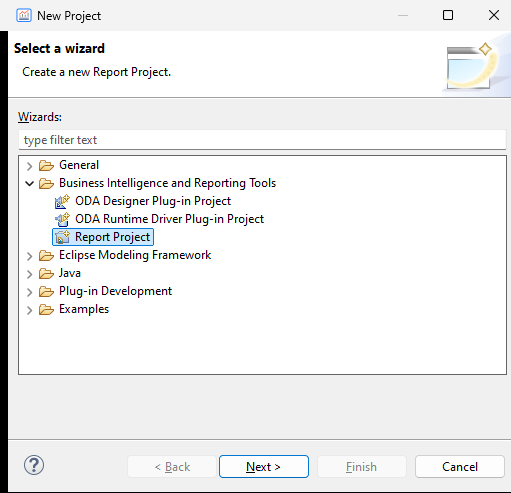
Click ‘Next’, give the project a name MyFirstBIRT, and ‘Finish’.
From the ‘Project Explorer’, create a new ‘Report’ with name hello_world.rptdesign:
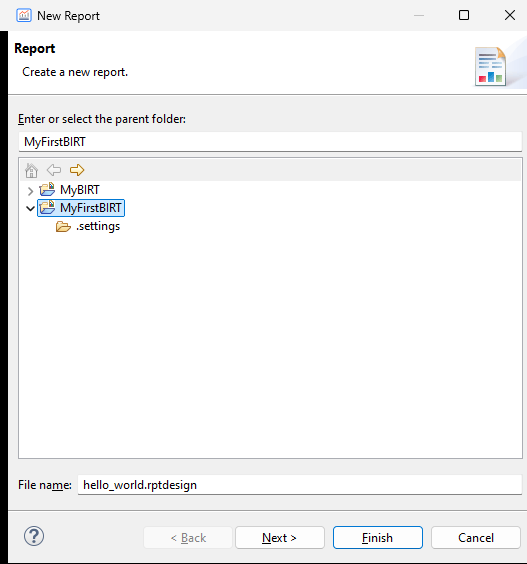
Click ‘Finish’ to directly create a blank report…that’s all; you can already go to the ‘Run’ menu and view the report in PDF format (and even HTML and DOCX are possible to generate!)
Have also a search on YouTube for nice BIRT designer tutorials; we jump in quickly (with this post) and narrow it further down to our OPA niche.
NICEEEE, it’s time to connect a datasource (from the top-left panel Data Explorer). Create a new one of type ‘Web Services Data Source’ and give it the name opa_ws_get_all_process_models:
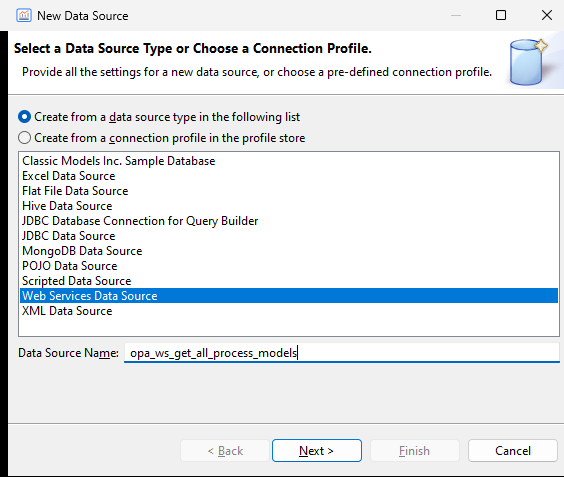
Click ‘Next >’ where you need to provide a value for the WSDL Descriptor and/or the SOAP End Point. We fill in both like this:
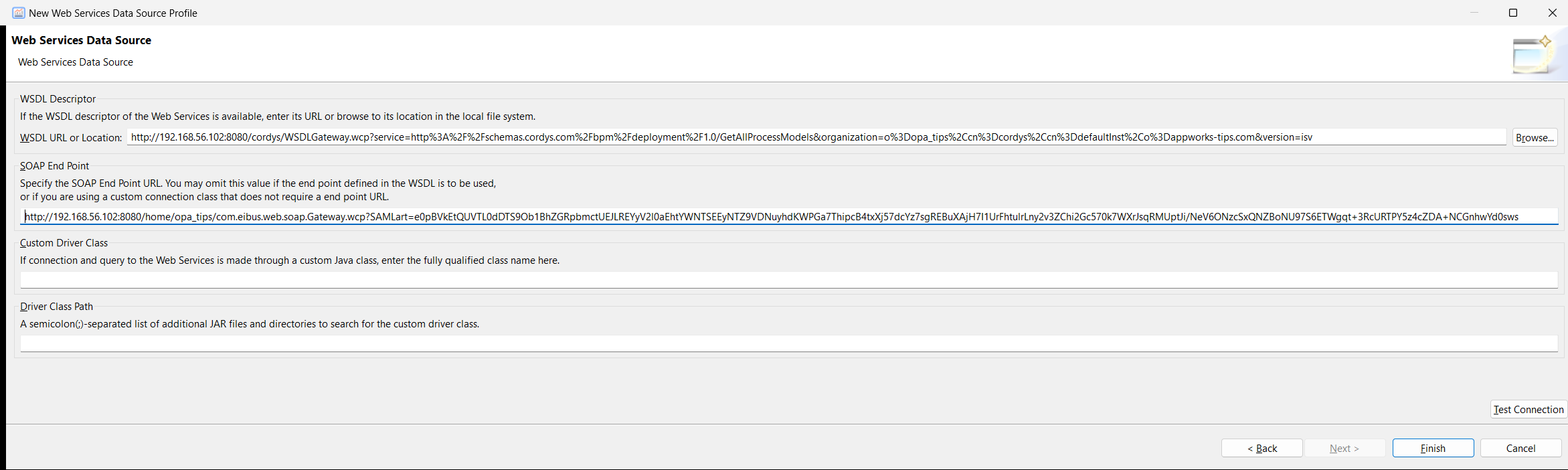
You can grab the WSDL descriptor URL from any OPA service from here (look at the bottom!):
You can grab a SAMLart value via this SOAP request in the ‘Web Service Interface Explorer’ artifact in OPA:
2
3
4
5
6
7
8
9
10
11
<SOAP:Body>
<Request xmlns="urn:oasis:names:tc:SAML:1.0:protocol" RequestID="" MajorVersion="1" MinorVersion="1" IssueInstant="">
<AuthenticationQuery AuthenticationMethod="">
<ns1:Subject xmlns:ns1="urn:oasis:names:tc:SAML:1.0:assertion">
<ns1:NameIdentifier NameQualifier="" Format=""/>
</ns1:Subject>
</AuthenticationQuery>
</Request>
</SOAP:Body>
</SOAP:Envelope>
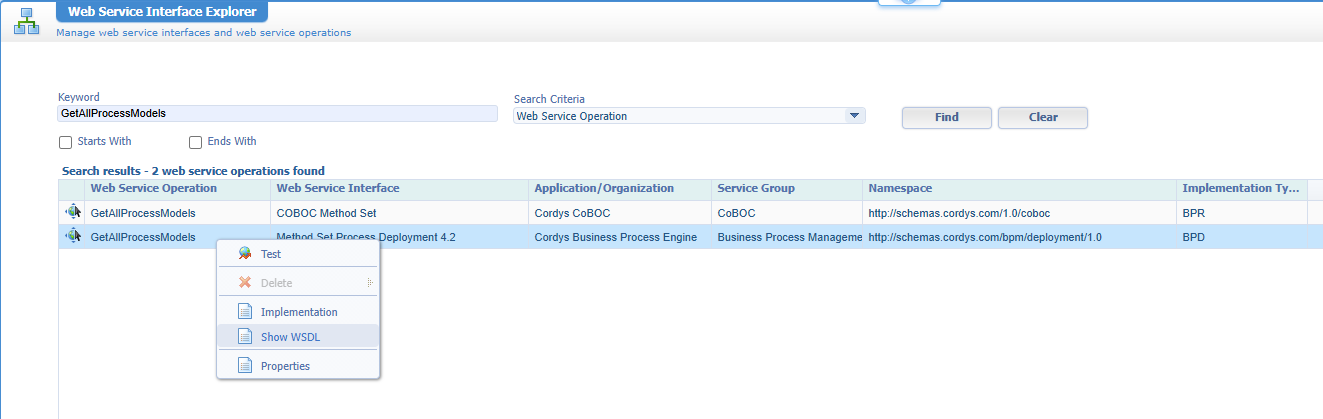
Click ‘Finish’!
Open the just created data source again, and open the category ‘Property Binding’ to add these script parts:
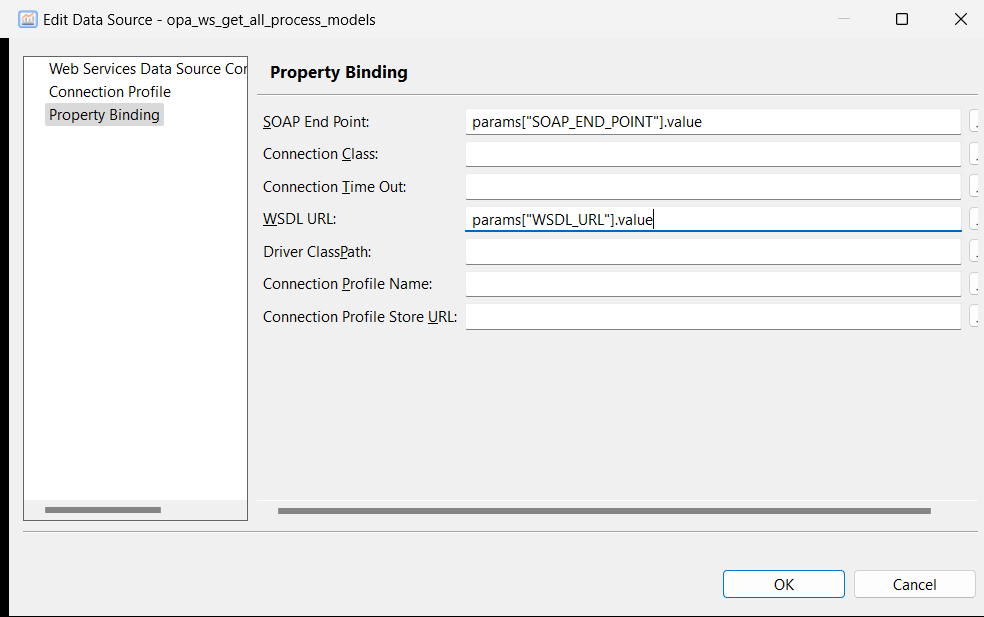
For you to copy:
- SOAP End Point:
params["SOAP_END_POINT"].value- WSDL URL:
params["WSDL_URL"].valueGood to know; don’t do something like this for the SOAP End Point:
params["SOAP_END_POINT"].value+'?SAMLart='+params["SAMLART"].value. Later on, we learn that the BIRT connector in OPA adds the?SAMLart=part! Read more about it here.
The next step is to add those two variables as report parameters of our project. These will be simple string-type parameters with a text box (I only mark WSDL_URL as required!):
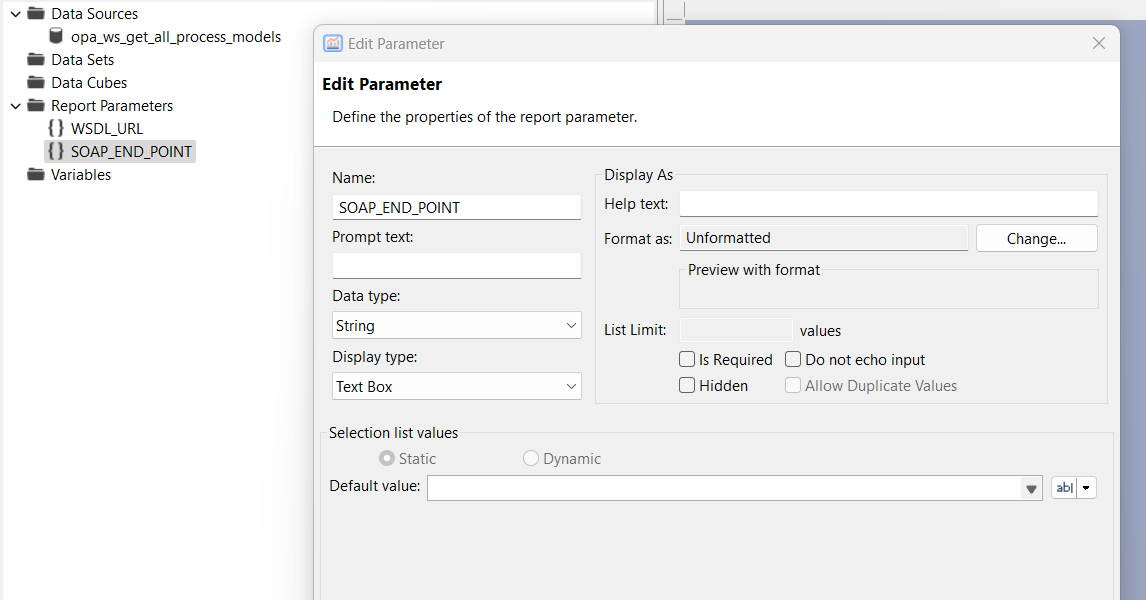
Why is
SOAP_END_POINTNOT required? Well, the OPA BIRT connector will fill this variable for us; However, if we want to test the report from the BIRT designer, we still need to have the possibility to fill it ourselves!
When you now run the report (e.g. in PDF format), you’ll get an input screen before running it:
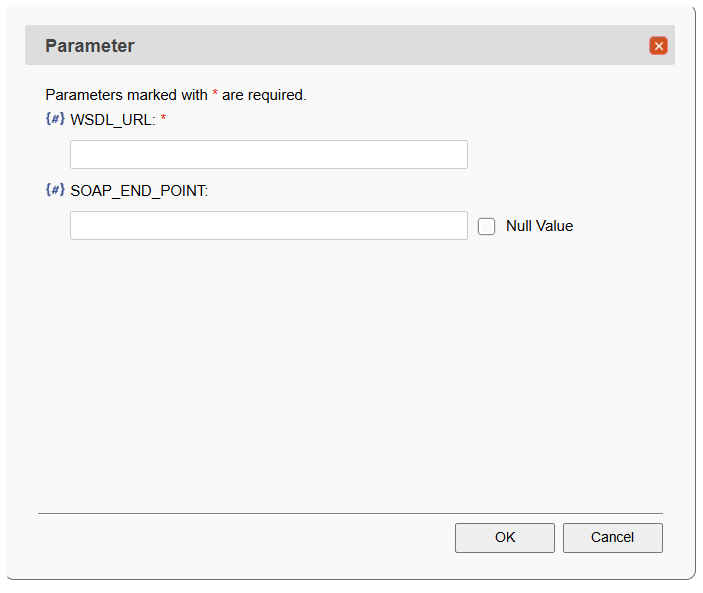
However, there is no point filling in something (yet!) as we first need to define the dataset to grab from our service call!
So, back to the report designer to create a new ‘Data Set’ with the name opa_ds_get_all_process_models, from the ‘Data Explorer’ panel:
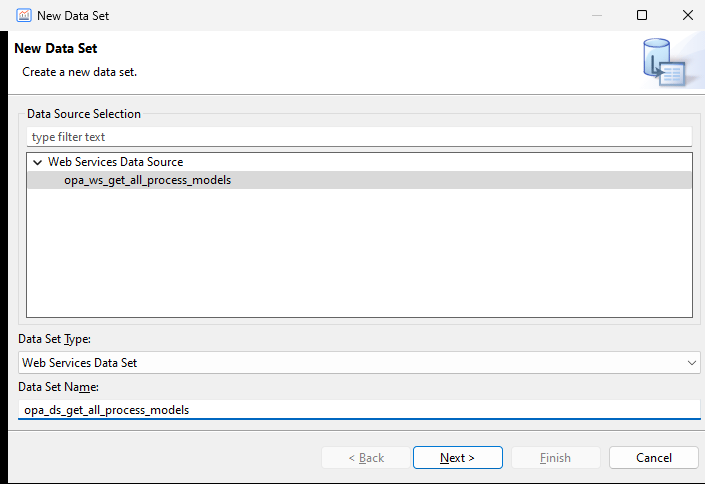
Click ‘Next >’…
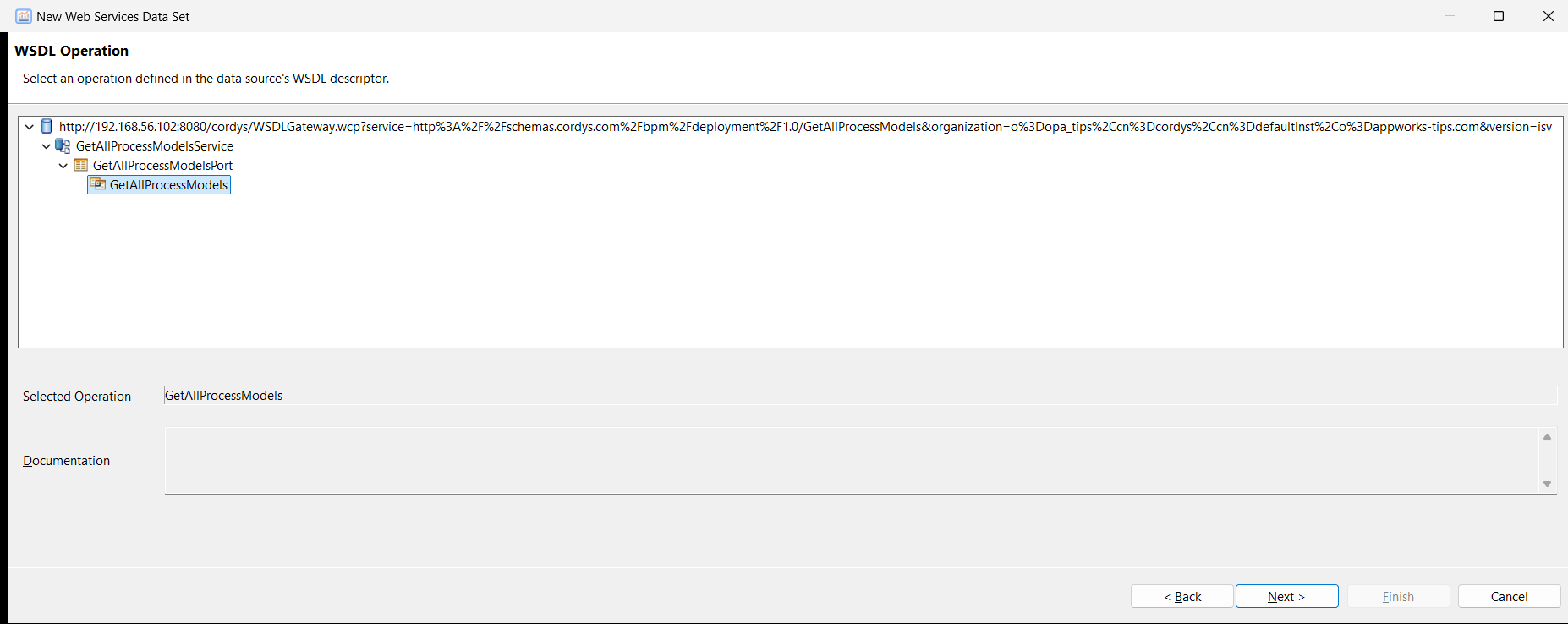
Select the correct operation and click ‘Next >’
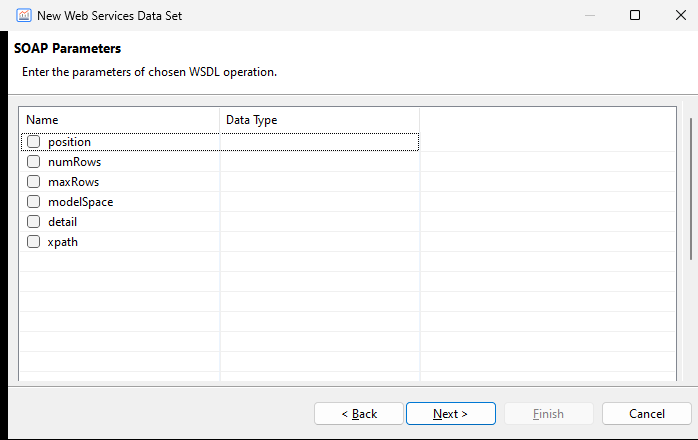
Deselect all the input parameters; for OPA, we can just make a call like this (to keep it simple!):
1 | <SOAP:Envelope xmlns:SOAP="http://schemas.xmlsoap.org/soap/envelope/"> |
Click ‘Next’…
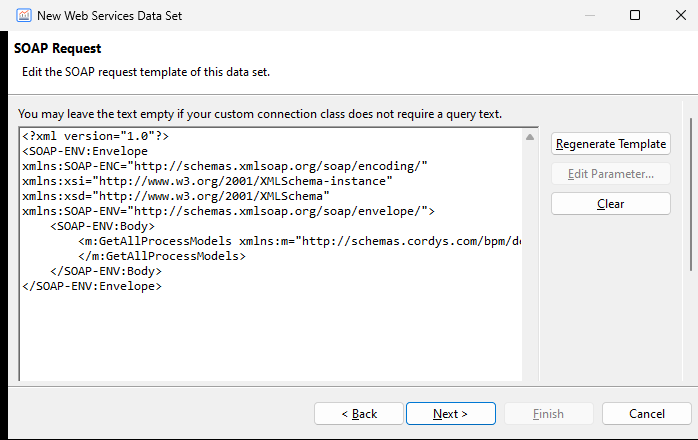
Change the XML structure to your needs (the above screenshot is cleared from extra options we don’t need for now); click ‘Next >’ to continue:
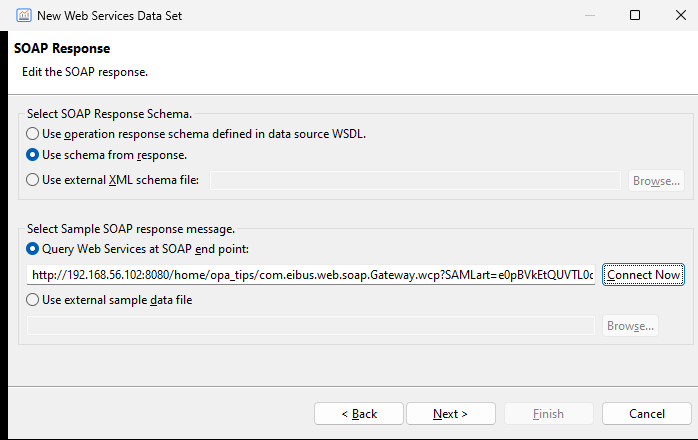
Do the following changes in this screen:
- Select ‘Use schema from response’ which makes it more reliable; sometimes OPA sends responses you’ll be amazed about where each entry of a result has a unique namespace identifier!?
- Provide the
?SAMLart=value in the SOAP end-point with a valid value (as it could be expired by now!). You know how with theRequestSOAP call from above.
Test the connection via ‘Connect Now’, and click ‘Next >’:
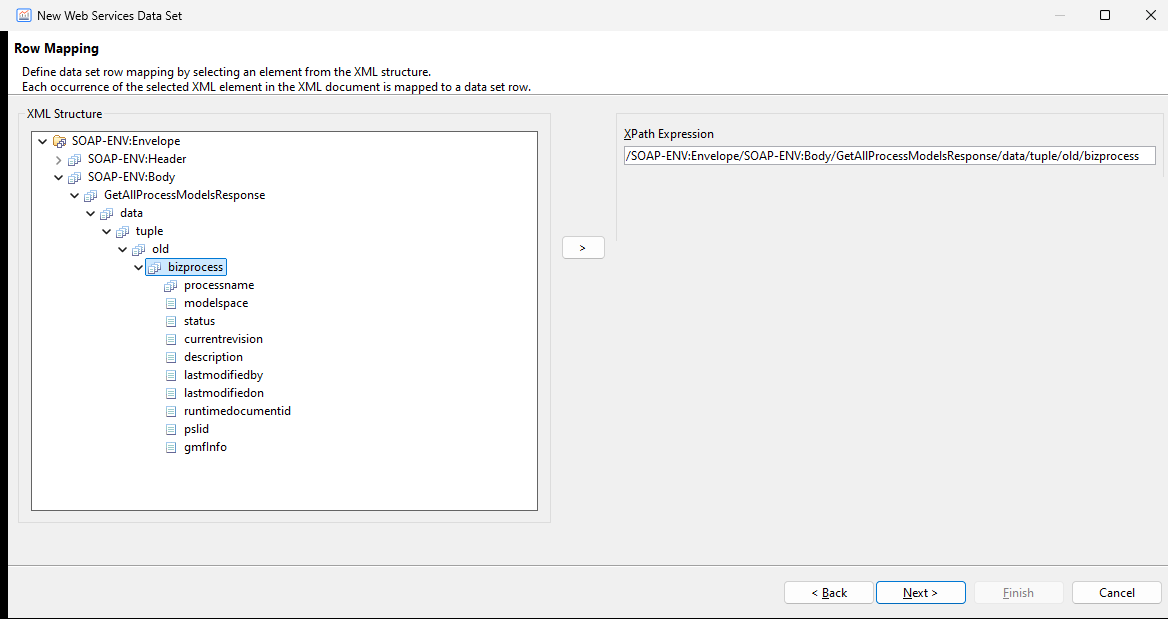
This is your row-mapping. So, that’s the array/list of elements (in our example for each bizprocess). Click ‘Next >’ to continue:
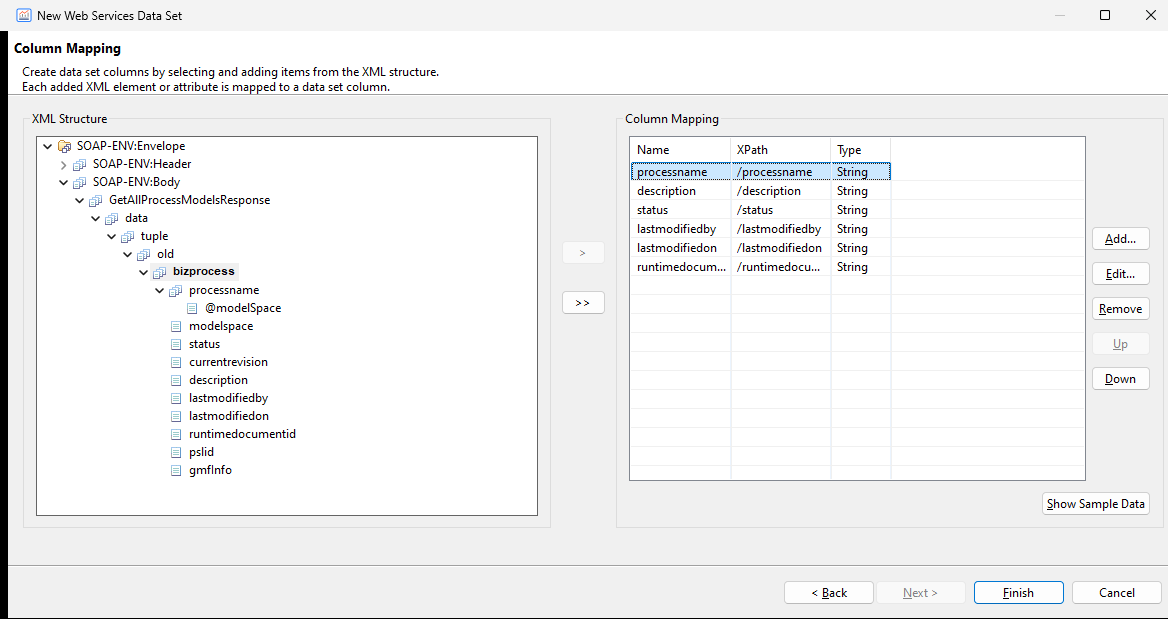
This is your column mapping. Add whatever you want to see, but keep it simple. FYI: You can NOT do any fancy xPath functions here; like substring-before(substring-after(lastmodifiedby, 'cn='), ',')!
Once done, hit the ‘Show Sample Data’ to see your first result (which is live data!):
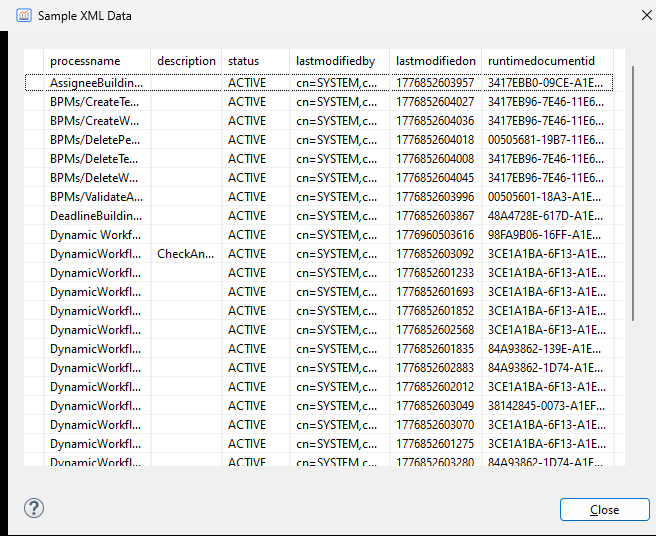
‘Close’ the screen and ‘Finish’ the wizard. You’ll end up in the ‘Edit Data Set’ screen which you just followed the wizard for! This is the place to do fancy-functions-stuff; like adding ‘Computed Columns’ for example:
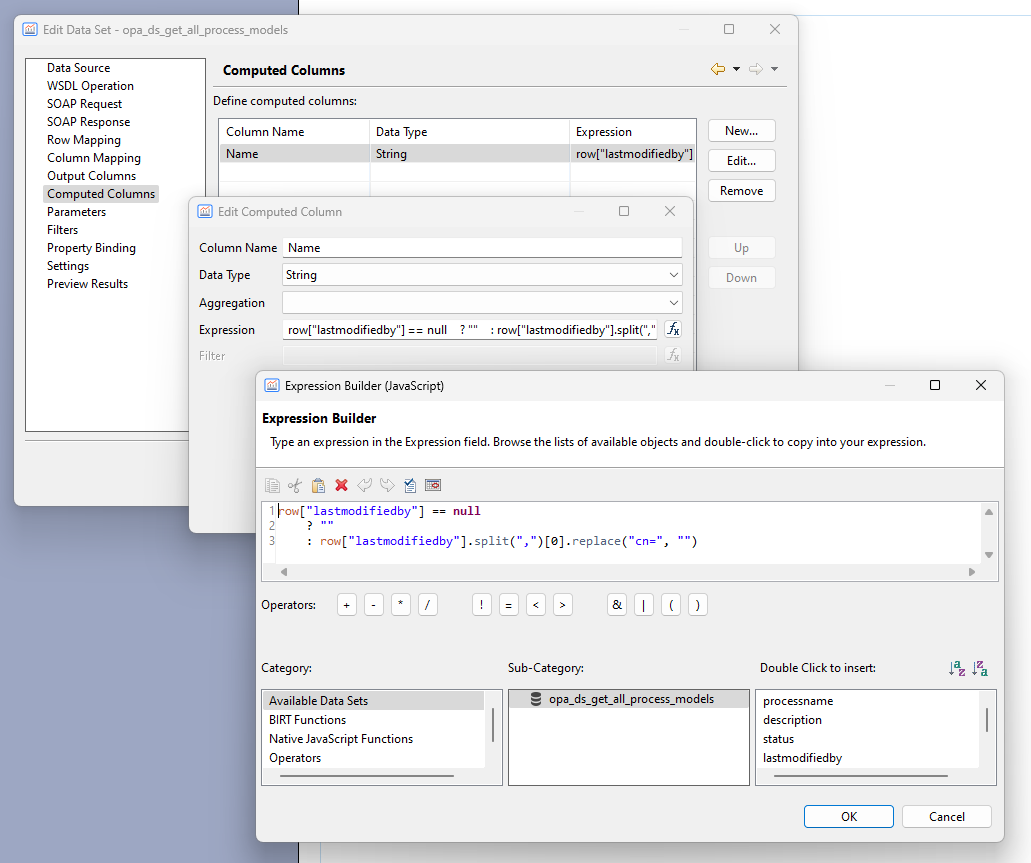
For you to copy:
2
3
? ""
: row["lastmodifiedby"].split(",")[0].replace("cn=", "")
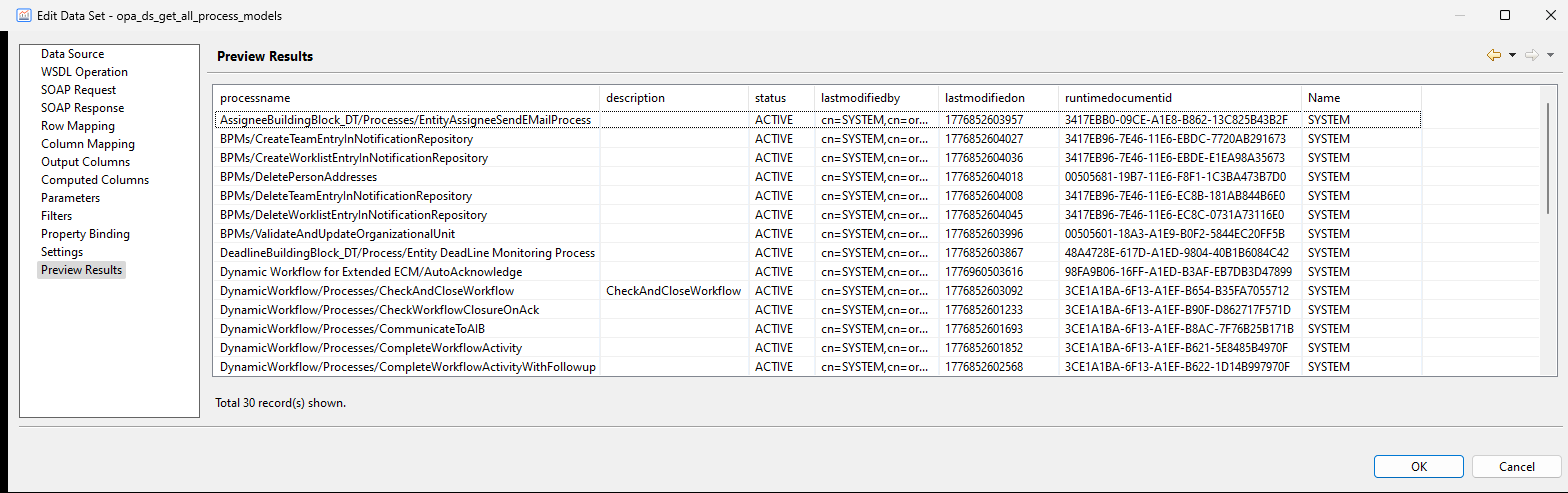
NICEEEEE…watch the preview now (including that last computed ‘Name’ column!):
Hit OK…Back to our design template!
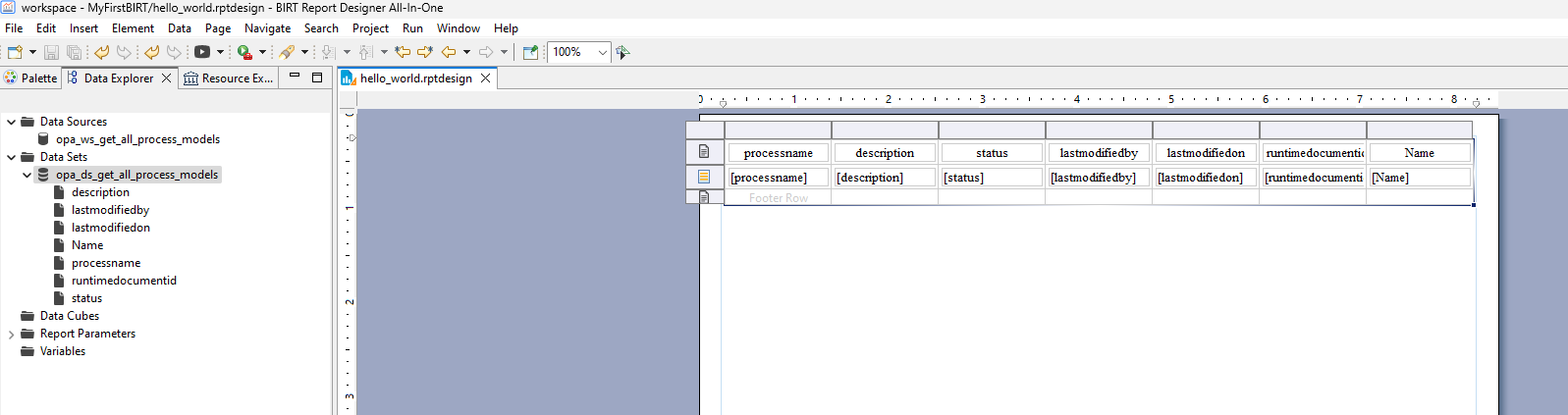
You can now drag&drop the dataset into the template (selecting all columns) and let the designer do its magic:
Let’s do another run now of our report in PDF format with this input:
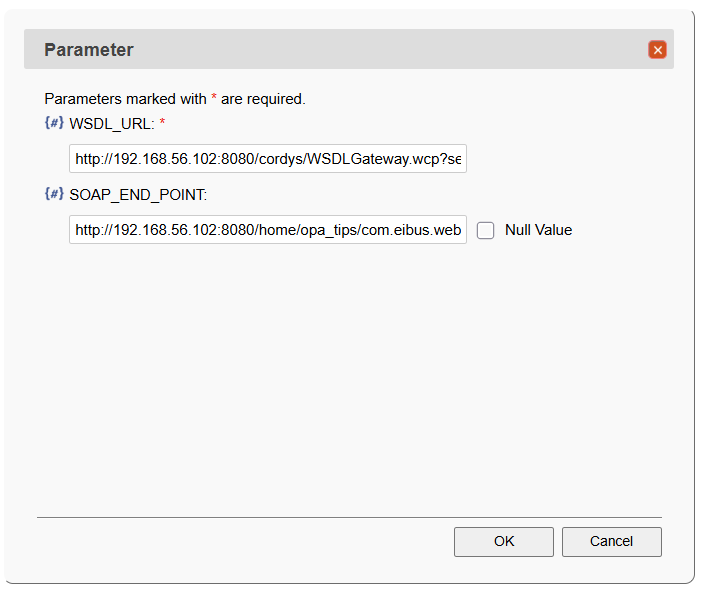
1 | WSDL_URL = http://192.168.56.102:8080/cordys/WSDLGateway.wcp?service=http%3A%2F%2Fschemas.cordys.com%2Fbpm%2Fdeployment%2F1.0/GetAllProcessModels&organization=o%3Dopa_tips%2Ccn%3Dcordys%2Ccn%3DdefaultInst%2Co%3Dappworks-tips.com&version=isv |
AND there it is…
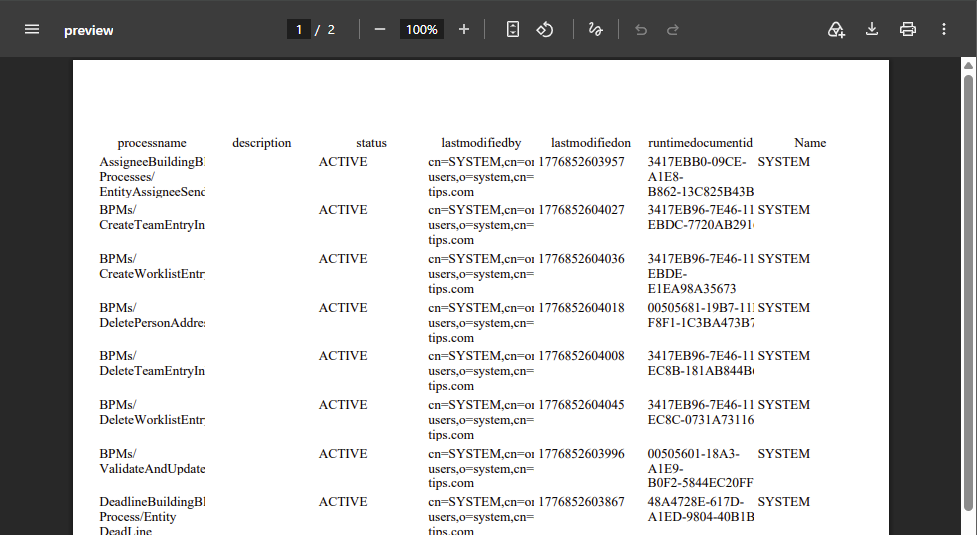
It’s a party! 🎉 🥳 🎊
I know; it’s basic table content, but you can design/format whatever you want here; including images!
…
Now what? Well, how about copying our report file onto our OPA server on location /opt/opentext/ProcessAutomation/defaultInst/birt/ matching what we’ve configured last week for our BIRT service container in OPA!
Then start the ‘Web Service Interface Explorer’ artifact and first play around with calls like this:
1 | <SOAP:Envelope xmlns:SOAP="http://schemas.xmlsoap.org/soap/envelope/"> |
Watch the
&replacements with&…That’s XML stuff!
Eventually, you’ll get a result like this:
1 | <data> |
For me, it’s a green (✅) checkmark with a table filled with process details in PDF format at a reusable location on the OPA server; as designed/tested in the BIRT designer!
Final thoughts and struggles
I had of course my struggles during the implementation of this post; So, hereby some extra tips!
For logging, see here: /opt/opentext/ProcessAutomation/defaultInst/logs/birt/...
For debugging, you can:
- Add ‘Dynamic Text’ components on the BIRT report to output the parameter values like this:
params["SOAP_END_POINT"].value - Update the report events like ‘beforeOpen’, ‘onFetch’, and ‘afterClose’ with output scripts like this:
java.lang.System.err.println("### BIRT DATASET beforeOpen ###");. Run the service call and watch the TomEE logging. - Enable logging on the Gateway.wcp via this post to see what the total request looks like; watch the
Application_Server.xmlof the OPA platform for the result.
This error passed by during implementation: Cannot find the ODA dataSource extension (org.eclipse.datatools.enablement.oda.ws)
The solution? Extend the JRE class path with two extra JAR files to handle the ‘DTP Web Services ODA Runtime Driver’ we use (that’s because of the webservice call we make in the report!):
1 | /opt/opentext/ProcessAutomation/defaultInst/coe/BIRTConnector/BIRTConnector.jar:/opt/opentext/ProcessAutomation/defaultInst/coe/BIRTConnector/BIRTRuntime.jar:/opt/opentext/ProcessAutomation/defaultInst/coe/BIRTConnector/org.eclipse.datatools.enablement.oda.ws_1.5.0.202311071249.jar:/opt/opentext/ProcessAutomation/defaultInst/coe/BIRTConnector/org.eclipse.datatools.enablement.oda.xml_1.6.0.202411281604.jar |
The JARs are part of the designer plugins; Use the ones without
.ui_for the runtime engine of BIRT in OPA!
What about PDF/A-1a (or better PDF/UA for accessibility!)? Good question, with a solid screenshot in the properties of the report:
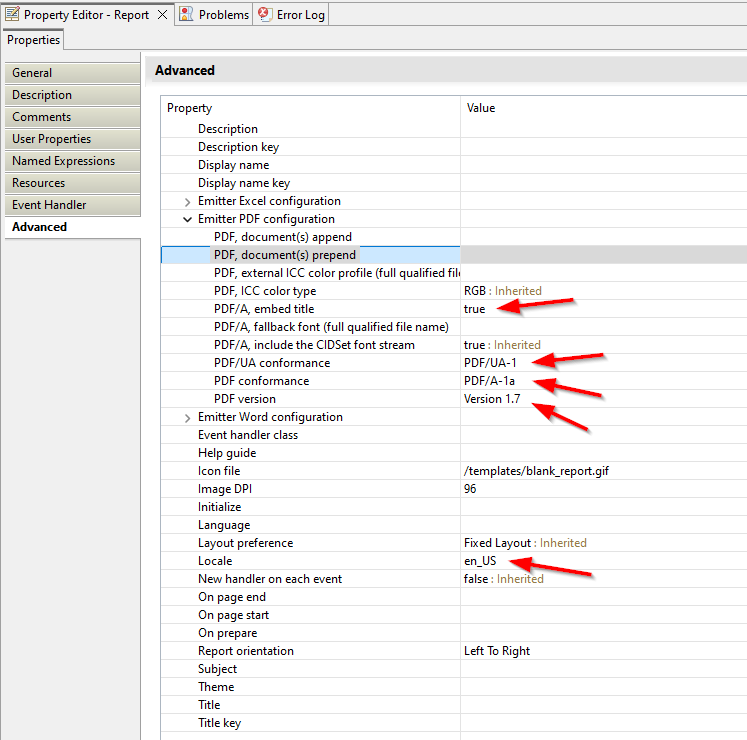
Be aware that you also need to design your report smarter, so it has semantic information available which (for example) ‘Windows Narrator’ can understand (not for this post)!
How to continue from here? Well, with all the service calls exposed, it’s now easy to create a BPM to further automate this. Just make sure to add the relevant runtime references to your project to make use of the example SOAP messages from above. You can now also upload this file into your xECM business workspace via the CreateDocument (read about it here); make sure to also clean up the mess on the OPA server once done; for this, you can use the DeleteFile service call of the ‘File Connector’!
That’s it; a DONE for this great implementation of the BIRT connector. You see what a little R&D can do for your OPA solution. I was always against this connector, but with the knowledge of now (after the two BIRT posts), I would even dare to advise using it over other licensed solutions. You just need to understand the concepts which are exposed now for you to reuse. I agree, it’s software from 2012, but it’s still running steady on release 26.2 of our beloved OPA platform which makes it just a solid solution to continue to use. Have a great magical weekend…🪄⊹₊⟡⋆
Don’t forget to subscribe to get updates on the activities happening on this site. Have you noticed the quiz where you can find out if you are also “The Process Automation guy”?
