


Hi there “Process Automation” fans,
Welcome to a new installment of “Process Automation” tips.
It was a trend (in 2022-2023): moving “basic workflow” functionality and “basic mail” templates into runtime. Your business analyst (aka “Citizen developer”) is in the lead in runtime to craft something “useful” for the end-user “to use”…Yes, we all know where this will end; let’s not dive into the pit of misery and drama!
That same “Citizen developer” also got a new development eXperience under the /dev path of the regular platform URL…Please, comment below if you know someone who is using it!?
Again, that same “Citizen developer” knocks on the door of the real “low-code developer”, asking how to move his crafted runtime templates (workflow and email) from Test to Acceptance to Production. Yes, I was waiting for that question; too bad it took 3-4 years before it was asked!
Let’s get right into it…
First, a note upfront: the data we’re talking about in this post is runtime data which is not under version control like we would normally have during solution building. This is also one of the big disadvantages of using it, especially when they start to grow in complexity (you don’t want to know what I see passing by for eXotic craftsmanship!).
However, I also understand the need for the functionality…So, let’s “Give the Man a Hand | RoboCop (1987)” and provide a solution to our “Citizen developer” to move his beauties from one organization to another…
I couldn’t find a tool to move this data to another organization!? If you know, let me know…in the comments! Or maybe this functionality is only to be used in production and I should just accept it.
It’s time to boot up our VM and dive into our favorite workspace with the corresponding project. We’ll just create a simple one-property ‘Case’ entity, and we’ll add the ‘Dynamic workflow’ and ‘Email’ building blocks to it. After updating all your naming standards, you should have something nice like this to play with:
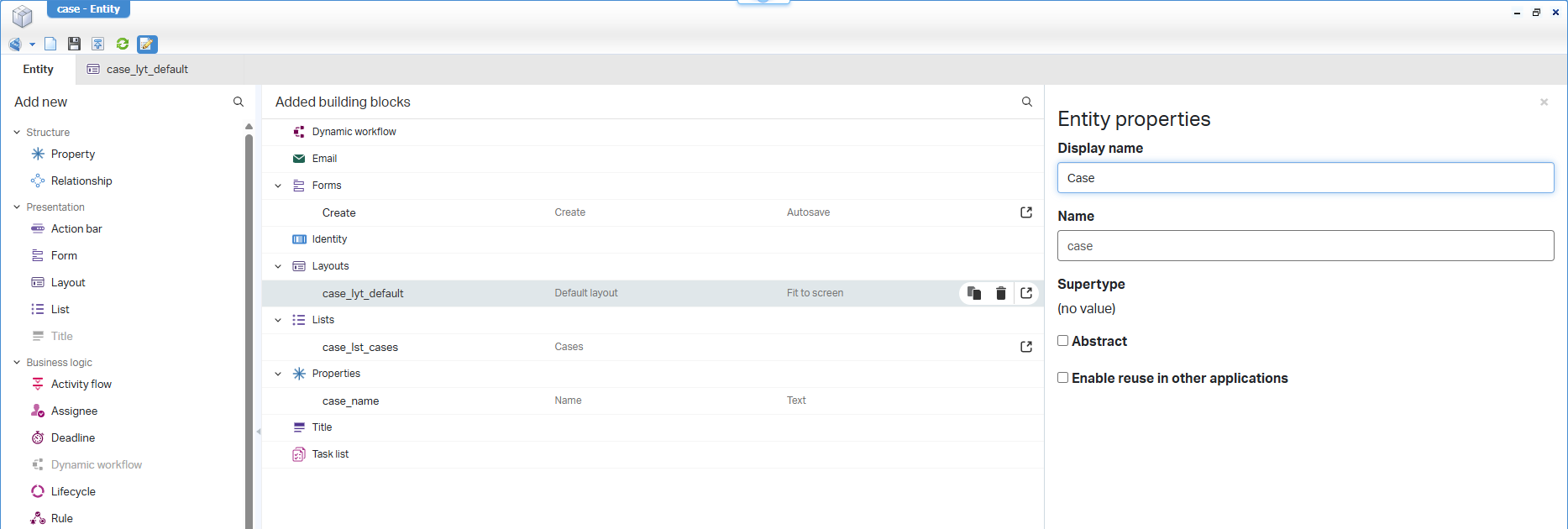
Notes:
- Set the entity display name in the entity properties
- Reuse one of the existing mail configurations; it doesn’t matter for now
- Add extra panels in the default layout to show the dynamic workflow instances and the mail details
Do a publication of the entity and play around in runtime…You can use your development account for now!
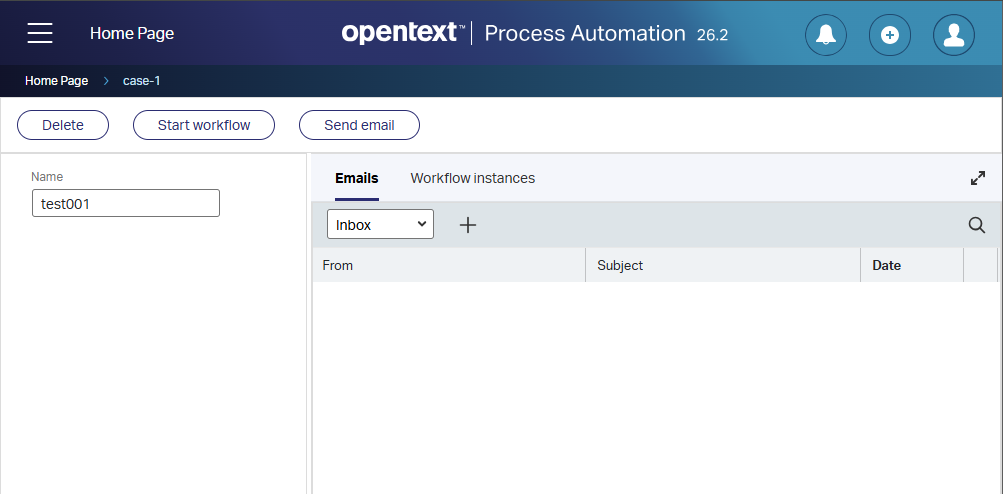
After playing around, you probably come to the conclusion that the list of workflow templates is empty AND you can’t select any mail templates; it directly opens a new empty mail.
The mail template part is easy to solve
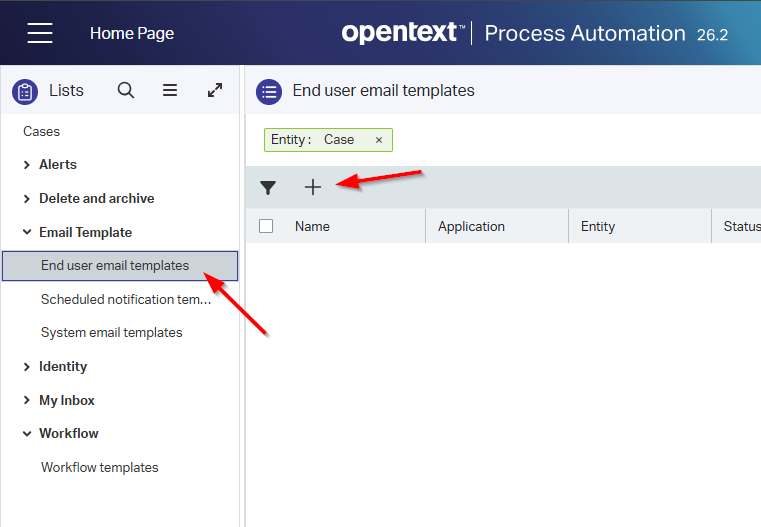
Open the default homepage, collapse the ‘Email Template’ section, and create a new template in ‘End user email templates’:
You can now create something like this template:
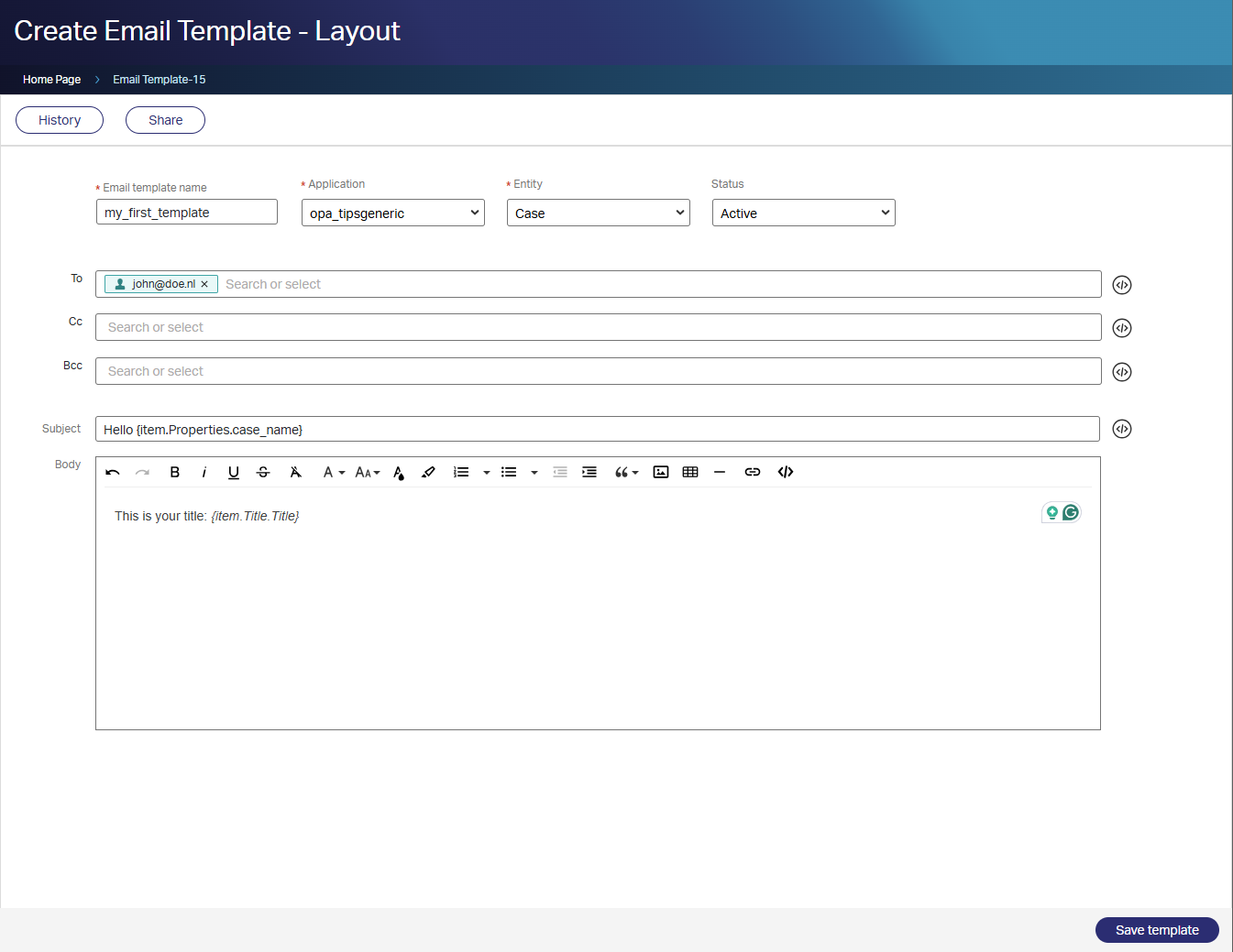
You can select the ‘Application’ and the ‘Entity’ because of our ‘Email’ building block on the ‘Case’ entity!
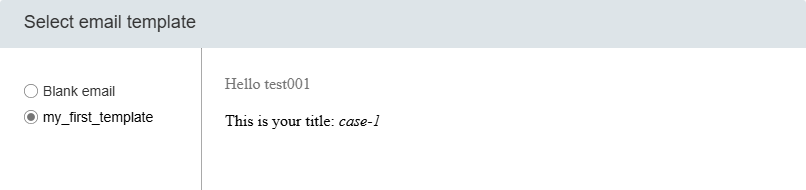
Save the template, go to your ‘Case’ instance and start a new mail. You now get an extra template selection screen:
The workflow template part requires a special touch
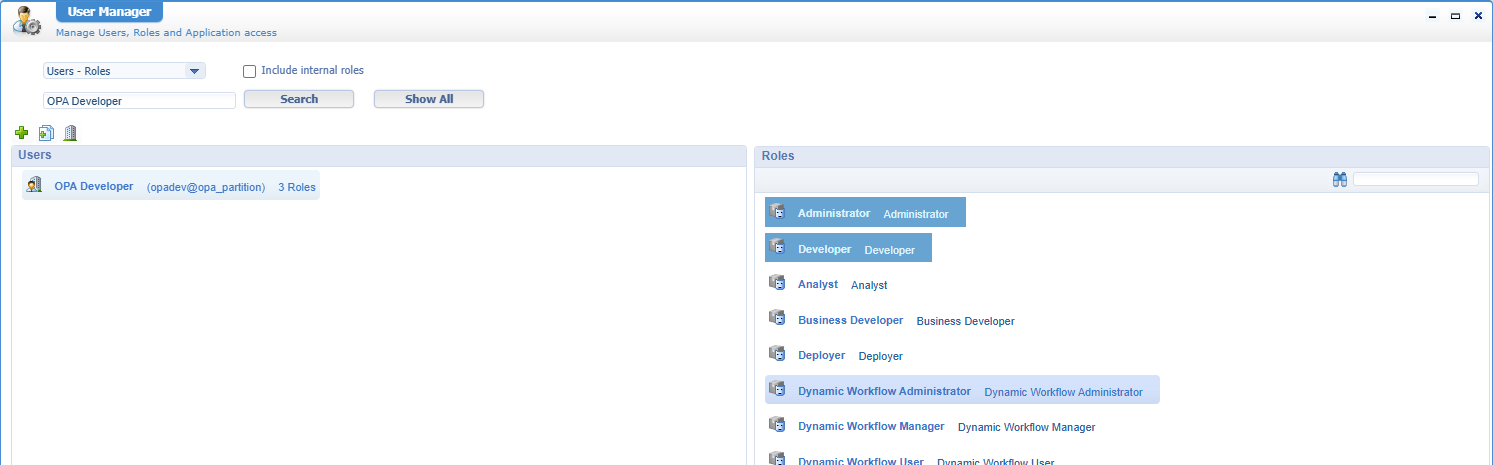
Before we can create a new ‘Workflow template’ on the homepage, we first need to assign a new role, ‘Dynamic Workflow Administrator’, to our user. You can do this from the ‘User Manager’ artifact:
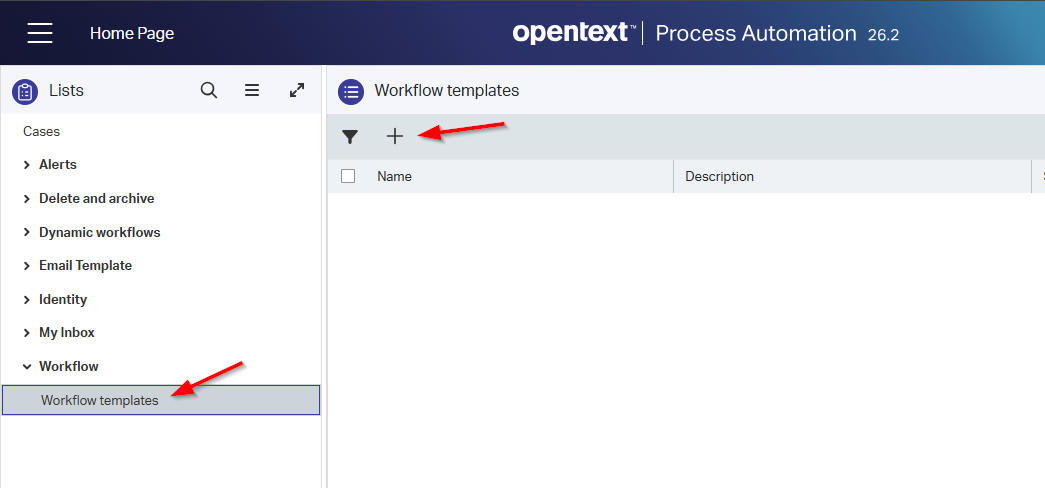
After this, you can create a new dynamic workflow template in ‘Workflow templates’:
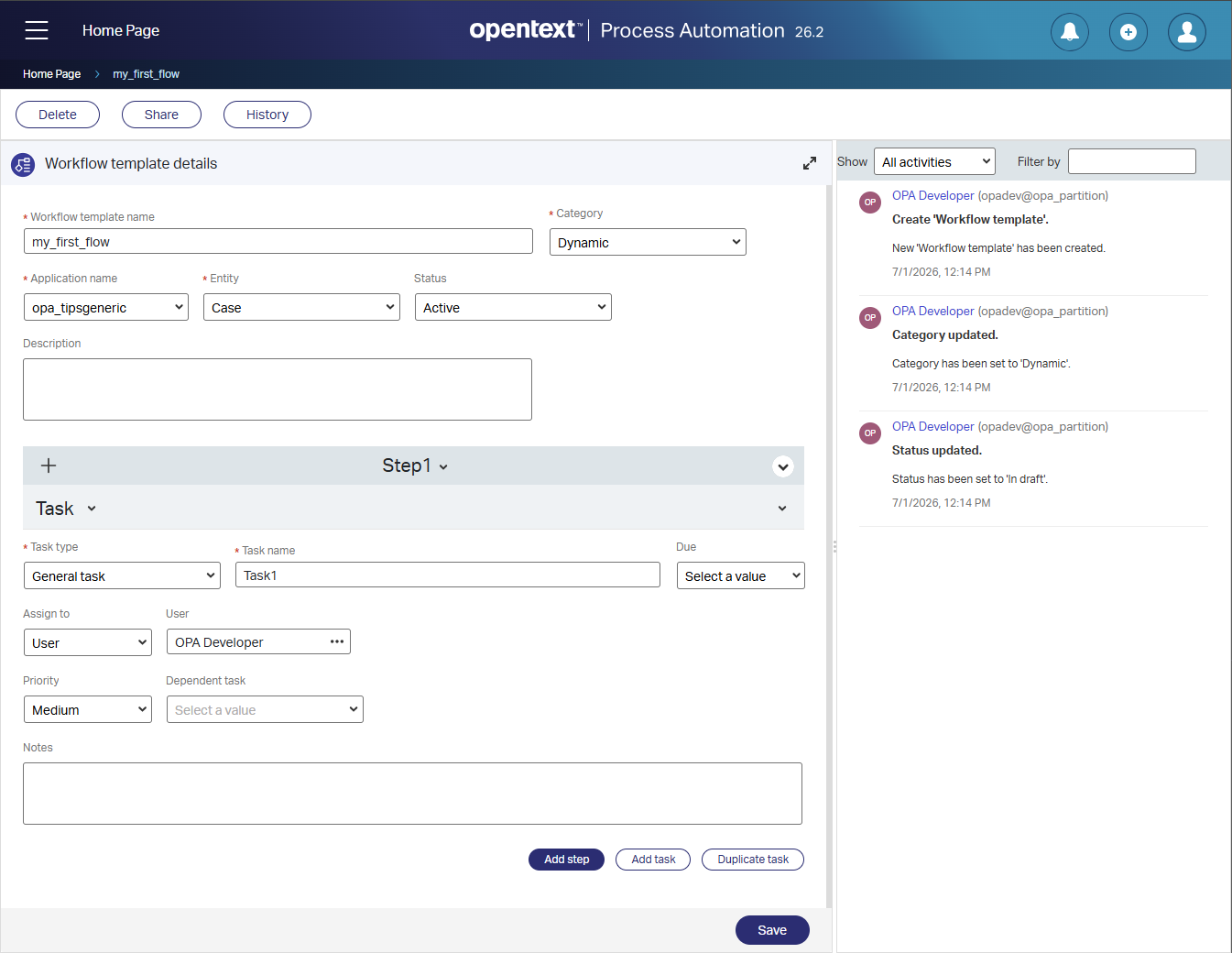
You can now create something like this template; just one step with one task:
Notes:
- Choose ‘Dynamic’ to allow users to change the template before starting it AND during the run
- Choose ‘Static’ when users can’t change the template and start it as designed
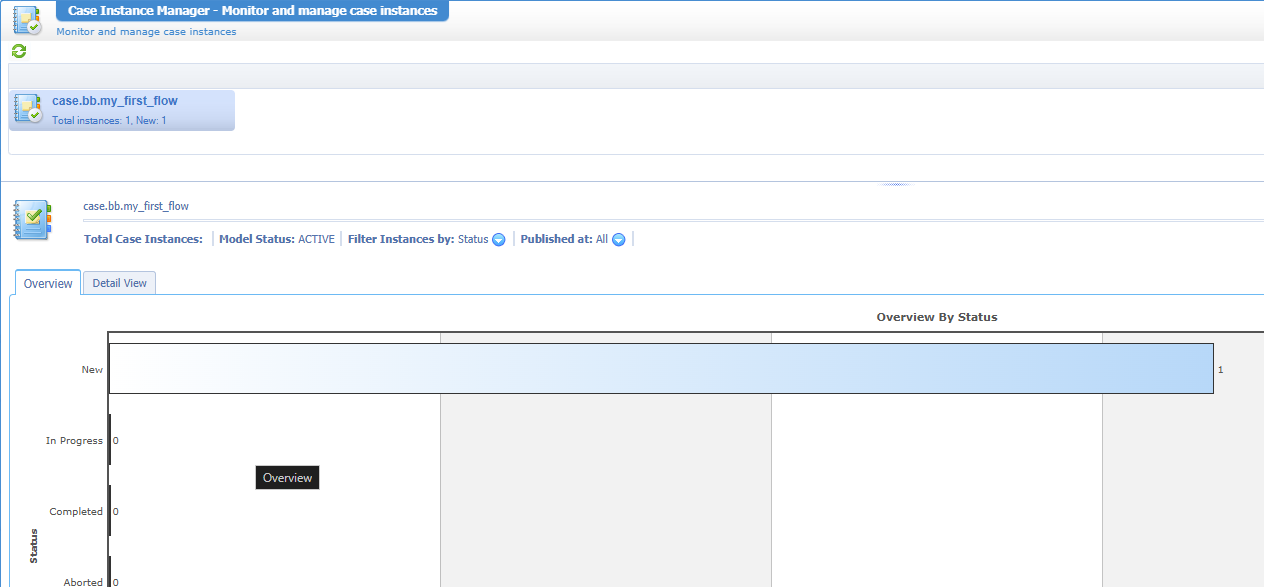
- A dynamic workflow is just a simplified lifecycle; you can find the instance in the CIM artifact!
Save the template, go to your ‘Case’ instance and start a new workflow. You now get to select your template from the dropdown and start it:
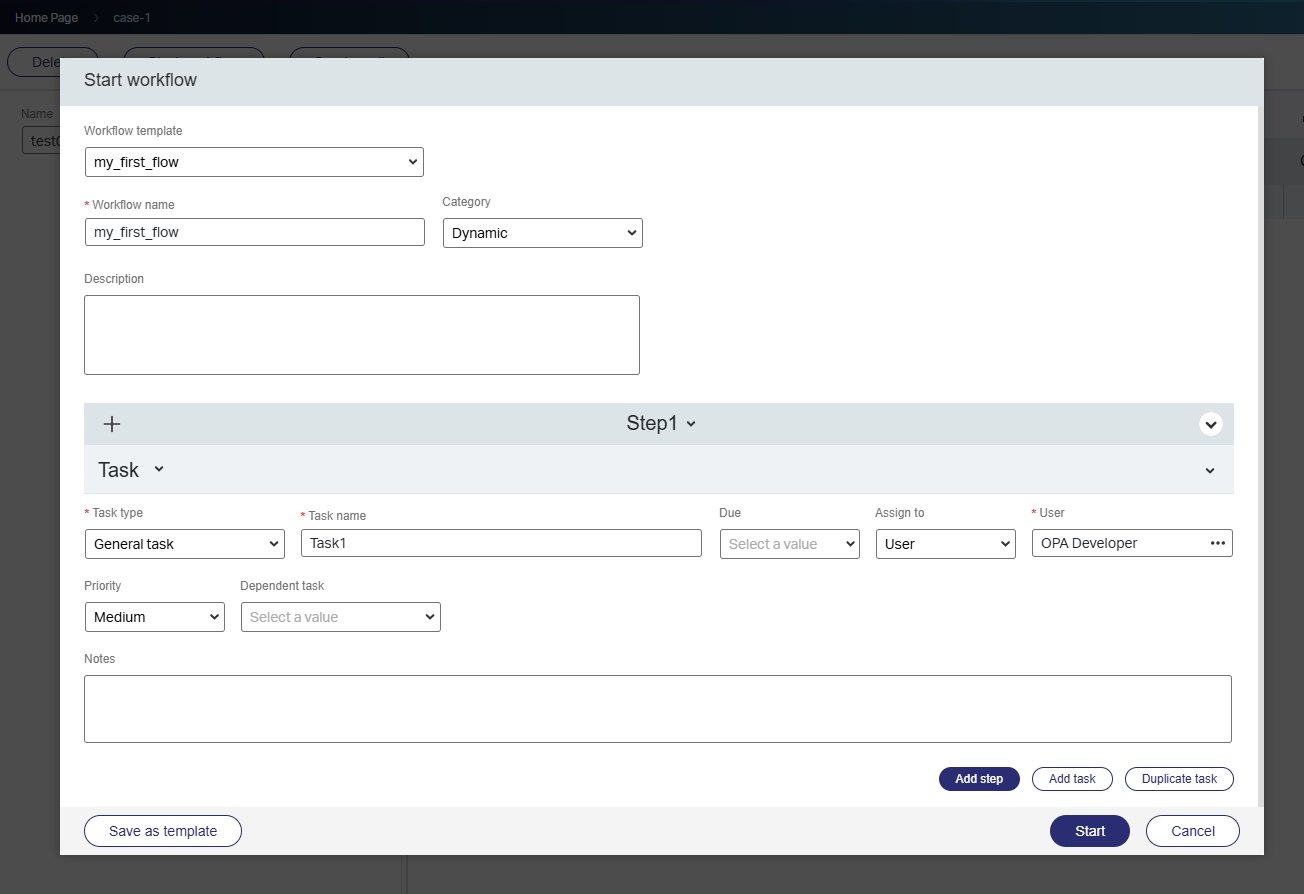
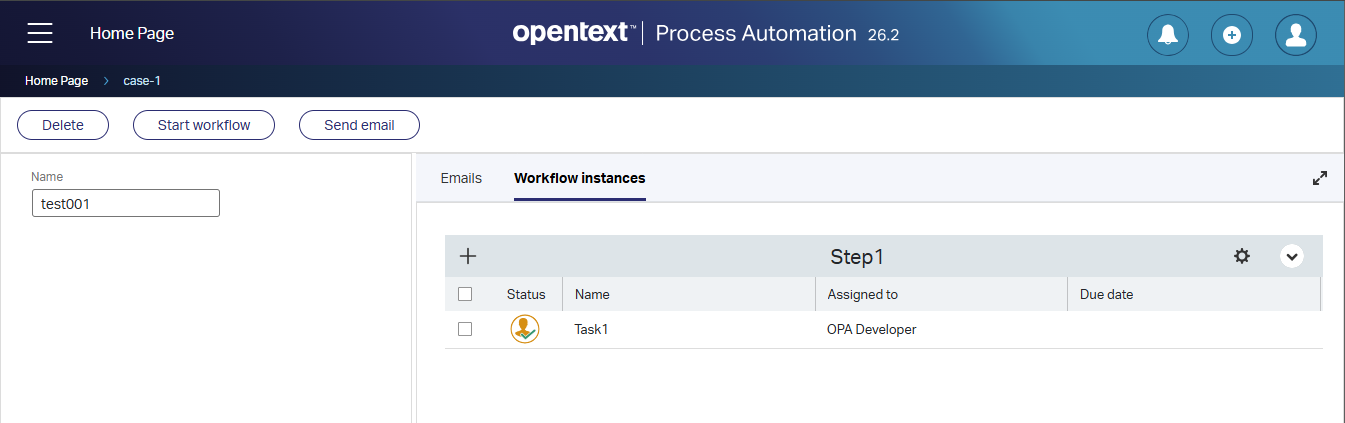
This is what you see in runtime for this workflow:
This is the Case Instance Manager view:
…
Just a quick observation; these templates have a specific “save” button where we normally have autosave functionality!?!? Isn’t that concerning?
…
So, let’s assume your ‘Citizen developer’ crafted around 50 mail templates and 25 workflows serving great functionality to the end-user. However, as he is a “developer”, he starts in Dev, moves to Test, then Acceptance, and eventually Production…right?
The move to a new environment
So, we’re on Dev with the solution, and we want to move it to another environment. I normally advise to first move it (your CAP file) to a second organization in Dev. Postfix it with _deploy; so in my case opa_tips_deploy
Normally, I would set up organizations in Dev like this:
opa_tipsas deployment organization to test changes from all developers; the name of the organization matches in Test, Acceptance, and Production!opa_tips_buildas package creation (as CAP file) after incorporation of all the SVN/GIT changes from other developersopa_tips_dev_person_aas development organization for ‘Person A’ connected to a central/shared source control systemopa_tips_dev_person_bas development organization for ‘Person B’ connected to a central/shared source control system- etc..
Let’s create that second organization in the ‘Organization Manager’ artifact in the shared /system space. I use the sysadmin account to accomplish this:
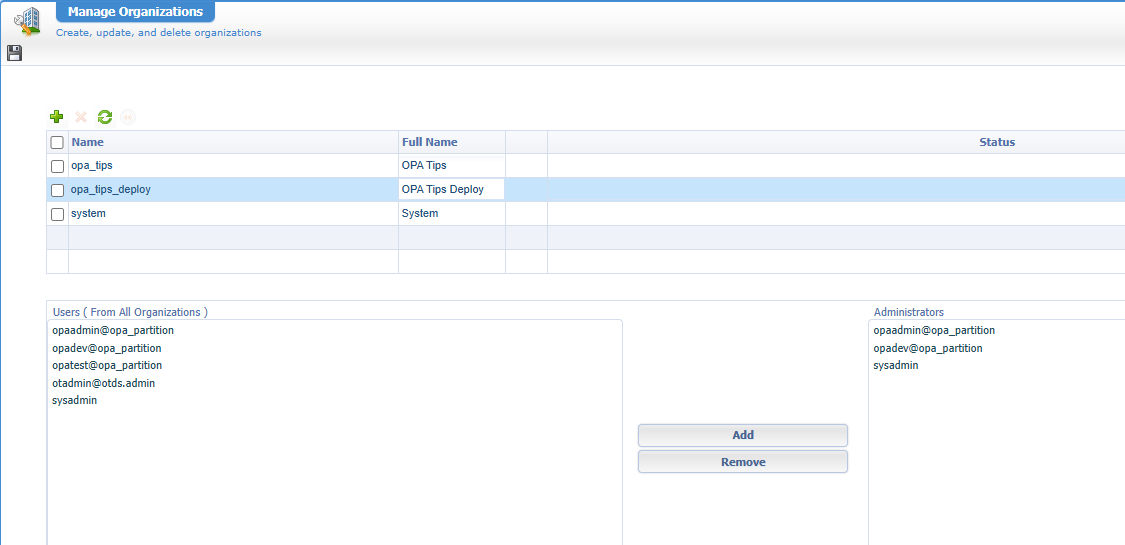
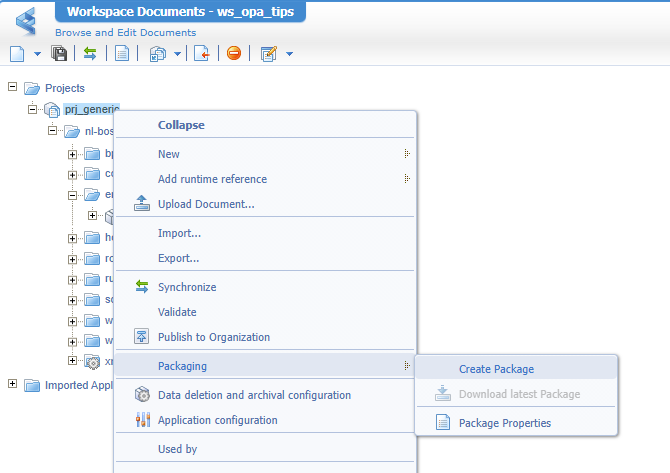
With the new organization in place, we can now start to package our solution:
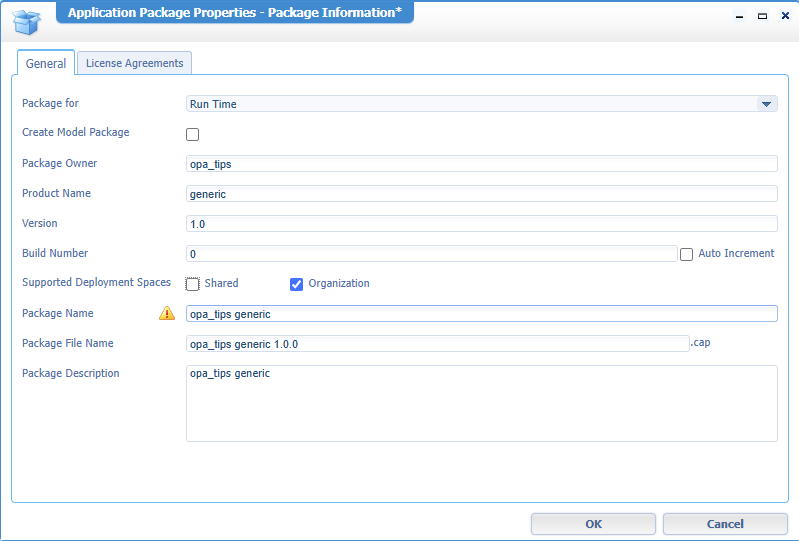
In case you’re wondering; these are my packaging options:
Grab a tea…🍵
When back, download the package; it’s a file named: opa_tips generic 1.0.0.cap
Go back into the /system space, start the ‘Application Deployer’ artifact and deploy the package in the new ‘Deploy’ organization:
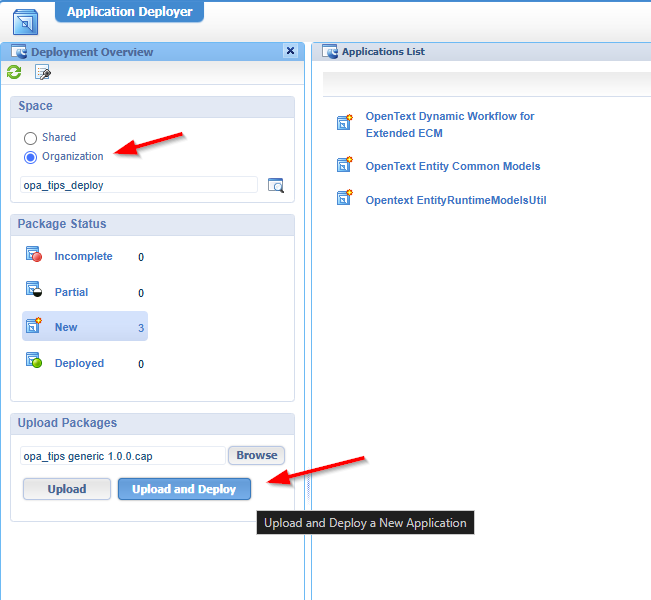
Just follow the wizard…It’s not rocket science; you can do it…
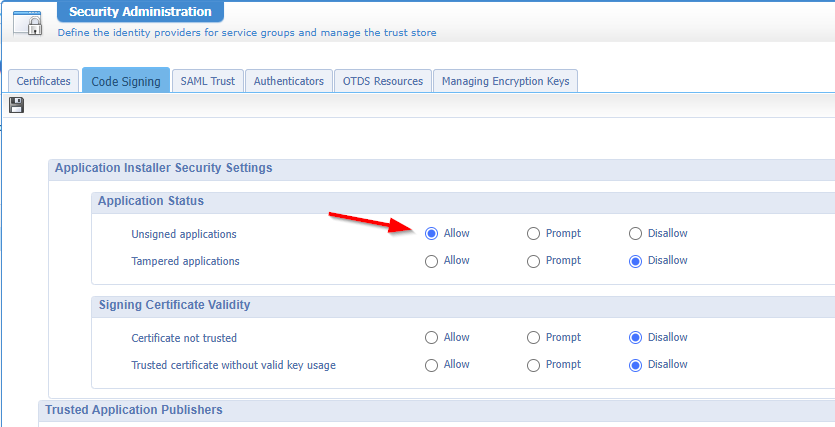
If you face a package signing issue, check the ‘Security Administration’ artifact on this setting:
Or better; follow this post on package signing!
Ok, deployment is done. Now dive into the new organization runtime…AND conclude that ONLY the solution details are available and NOT the runtime changes of your fellow “Citizen developer”…hmmmmmmm, he will not be happy! 😤
…
!!#DANGER_ZONE; do the below at your own risk; I’m on a VM with snapshots!!
So, how to move our dynamic workflow templates and email templates to the other organization (and eventually to another organization on another server)? For this, we’ll dive into the wonderful space of the database instance behind our platform.
You’ll find the instances in these tables: o2opentextentityruntimemodelsutilruntimeemailtemplate and o2opentextentityworkflowtemplatecomponentsworkflow_template
o2is the organization ID…read about it in this post. This is my mapping for the post:
o1=/systemo2=/opa_tipso3=/opa_tips_deploy
These are 2 validation statements to execute with HeidiSQL:
1 | --Dynamic workflow templates |
Because I’m on the same database, we can now simply move these instances to the o3 tables with these queries:
1 | --Dynamic workflow templates |
What if you’re on another database instance? Well, I would use an export of the database entries and create SQL-insert-statements AND import this export-SQL-script into the new database instance table…Ask your database administrator for a hand.
Two things you need to keep in mind:
- The ID and names must be unique! You control the name yourself, but the ID is a database-generated value (from a database sequence!)
- If you want to move a change, delete the old instance and insert a fresh exported version!
Again, you do all this DB-fiddling at your own risk; for me, it’s just to gain insights on the OPA system, to understand concepts, and find the edges of the platform!
Great details with a great “DONE” where database queries (and export/import functionality) help us again in our OPA journey. As long as OpenText keeps delivering new functionality for the platform, we still have lots of details to write about. Keep it locked here, at “OpenText Process Automation Tips” for more posts, ideas, and creativity with a human enthusiastic touch.
Don’t forget to subscribe to get updates on the activities happening on this site. Have you noticed the quiz where you can find out if you are also “The Process Automation guy”?
