


Hi there “Process Automation” fans,
Welcome to a new installment of “Process Automation” tips.
What we did last week between two SVN brokers, we now do from SVN (VisualSVN) to GitHub. How difficult can it be!? It’s always good to know and understand what needs to happen. Somewhere in the future it’ll be your task to execute it, and you’ll be prepared with this post. Enjoy the pain and sweat…😅
Again (like last week), two things are important in this exercise:
- Our repository with the solution sources of OPA should be intact
- The history of our commits (incl. messages) should be intact
Let’s get right into it…
Right, we start off to see what we have in VisualSVN currently (the result from last week viewed in TortoiseSVN):
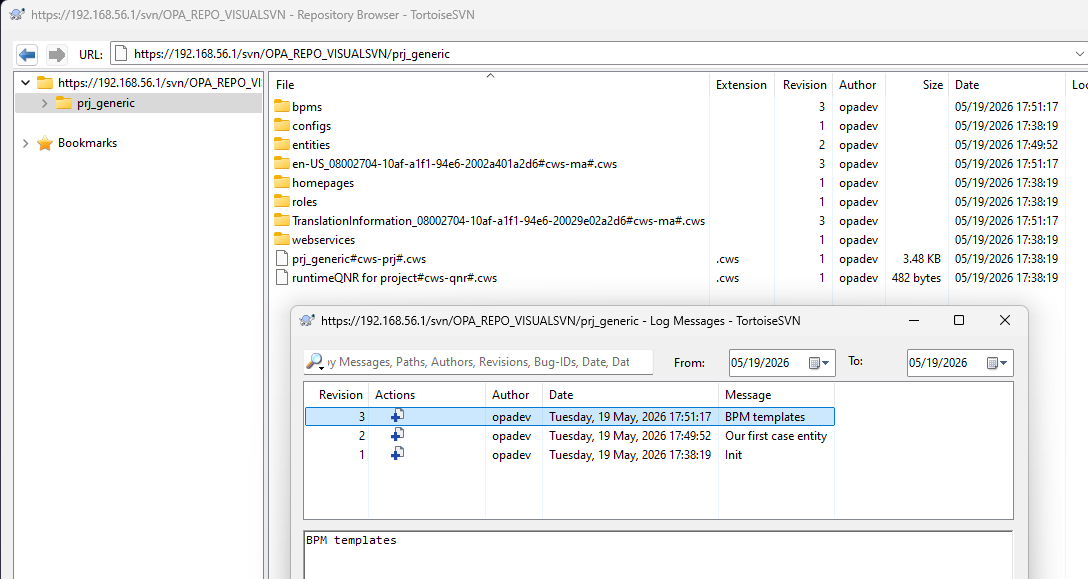
Let’s move this (incl. that history) to GitHub; it’s a private repo online under my GitHub account:
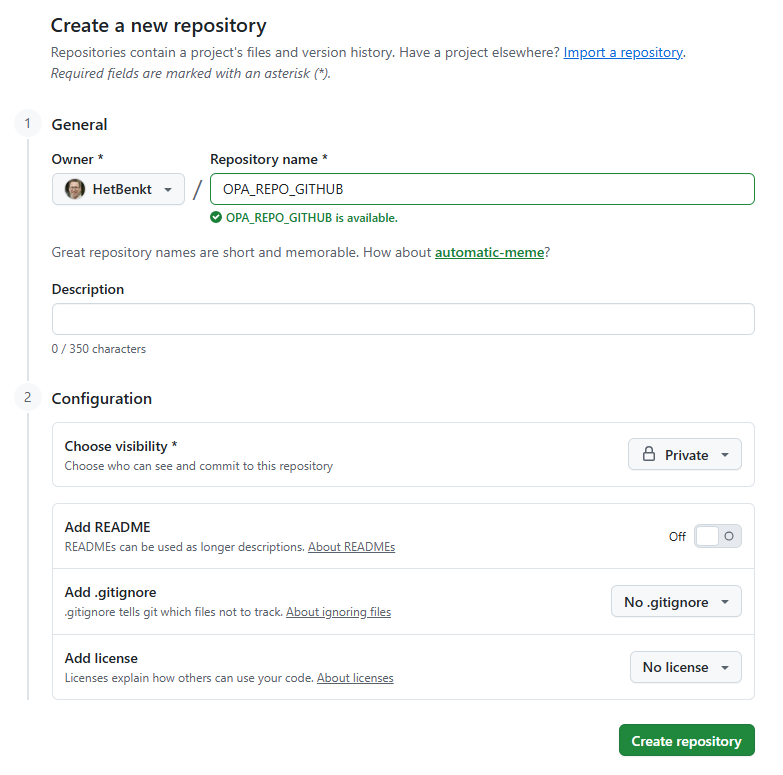
The URL we eventually need is https://github.com/HetBenkt/OPA_REPO_GITHUB.git
All ready? Let’s move from SVN to GIT…
WAIT…First read this post before running any commands, as Git is picky on two important topics from what we’ve eXperienced:
- Authors in Git have an email address; you can use a mapping file
authors.txt - Empty folders in SVN require at least one file; use
.gitkeep. Or better,.identifiers, as that’s what the platform does on empty folders once you’re connected to Git!
Move from VisualSVN to GitHub
My VisualSVN server is on my local laptop, so we’re using CMD prompts to make it happen! First make sure you have the git -v command available to get a response like git version 2.45.2.windows.1. If you don’t have it, install it first.
This Git CLI has a nice tool to move from SVN to Git: git svn <command> [options] [arguments]. We just need to figure out how it works…
Let’s first do a validation check like this: "C:\Program Files\VisualSVN Server\bin\svn" ls https://192.168.56.1/svn/OPA_REPO_VISUALSVN/prj_generic. It should list your project content.
If all is fine, give this command: git svn clone https://192.168.56.1/svn/OPA_REPO_VISUALSVN/prj_generic --prefix=svn/ prj_generic-git
Permanently accept the certificate details and provide the credentials for the SVN repo. Some logging will pass by, and you’ll end up with a new folder prj_generic-git at the location executing the command.
Go into the folder cd prj_generic-git and check if all is fine:
1 | git log --oneline --all --graph --decorate |
The current branch name is now master which we’ll update to main via git branch -M main.
SVN can also work with branches AND also with tags; however, we kept our project simple without them. Git always works in one branch! If you also want to save/convert your SVN branches/tags, have a look at these commands (I leave them out of scope for this post!):
2
3
4
git branch some-branch svn/branches/some-branch
git branch -r | grep tags
git tag v1.0 svn/tags/v1.0
We’re ready locally, let’s now add a remote location via: git remote add origin https://github.com/HetBenkt/OPA_REPO_GITHUB.git
Finally, we can push our local Git remotely via: git push -u origin main. You need to provide your GitHub credentials (not your password, but a token!) to make it work. Create a new so-called “fine-grained” token in the developer settings of your GitHub account!
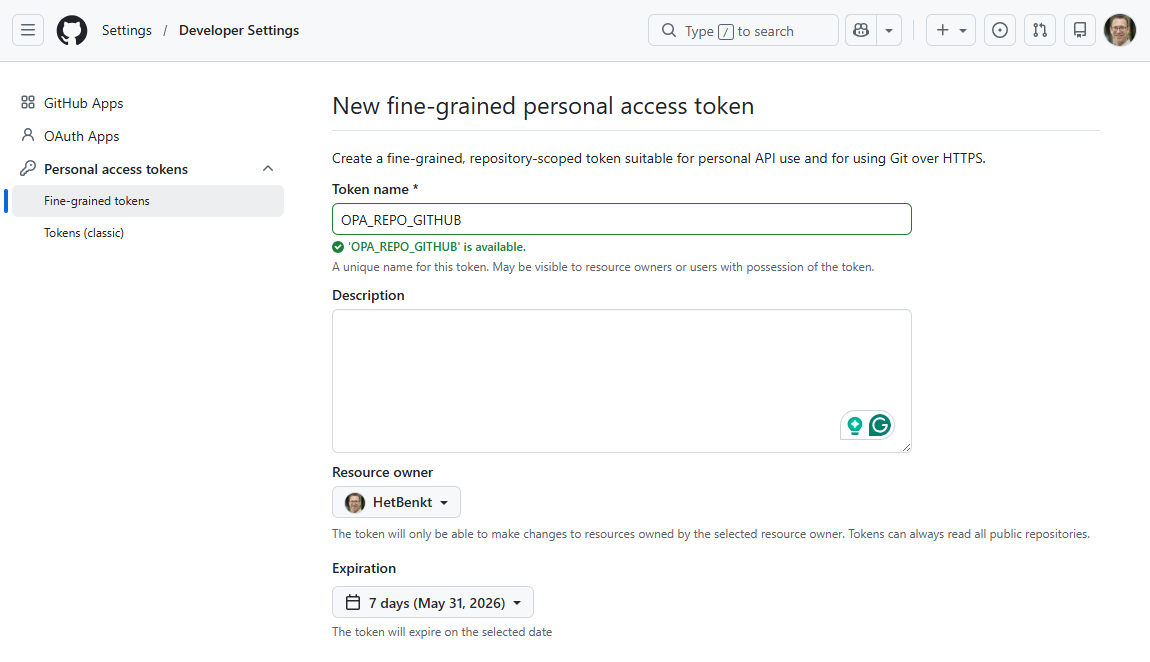
Make sure to set the permission for this token to the correct repo with sufficient permissions:
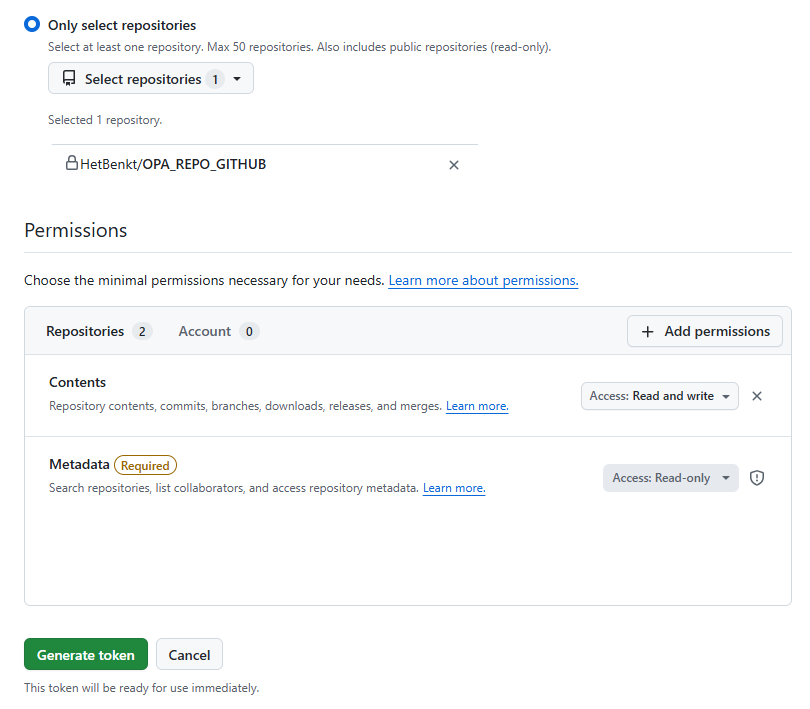
If you’re using branches/tags in SVN:
- This will push branches:
git push origin some-branch- This will push tags:
git push origin --tags
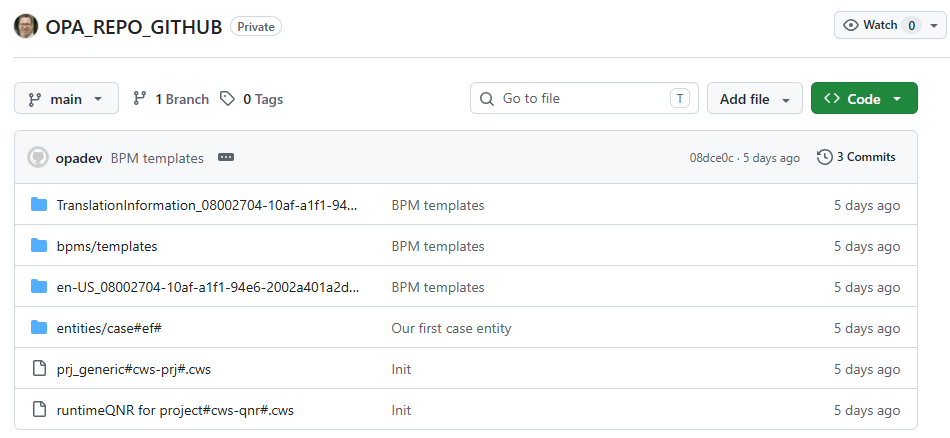
After that push, you’ll see this in your new GitHub repo (incl. commit history!):
Looking at one of the commits gives me a satisfying result as it also saved the user details:
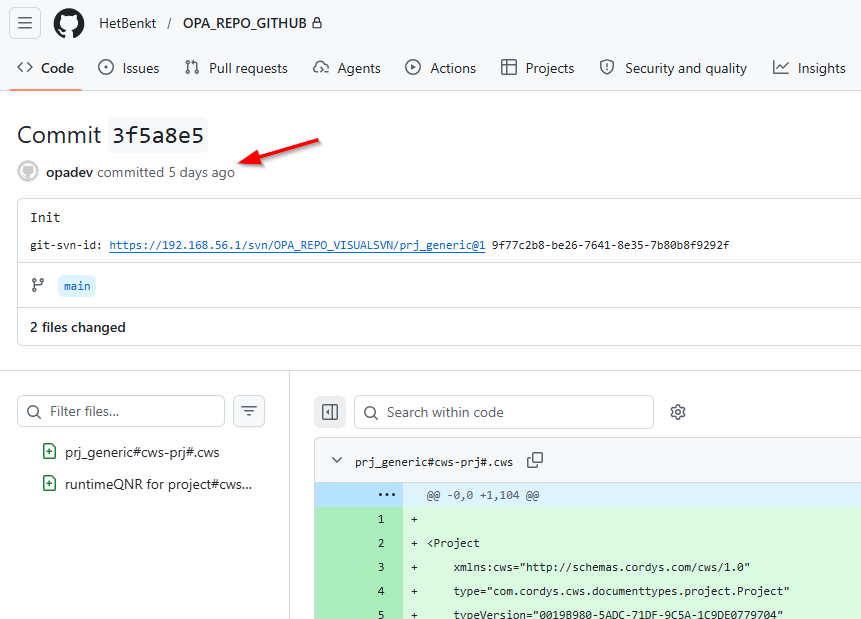
If you see weird user details (like svnuser <svnuser@...>) it’s better to create an authors.txt file with this content:
1 | opadev = OPA Developer <antal@bos-ictservices.nl> |
You can pass it into the git svn clone... command via --authors-file=authors.txt. Have a look at this fully enriched command (incl. trunk, branches, tags, and authors):
1 | git svn clone https://192.168.56.1/svn/OPA_REPO_VISUALSVN --trunk=prj_generic/trunk --branches=prj_generic/branches --tags=prj_generic/tags --prefix=svn/ --authors-file=authors.txt prj_generic-git |
So far an excellent job! Let’s see if OPA likes/accepts our new repo in GitHub from a new workspace:
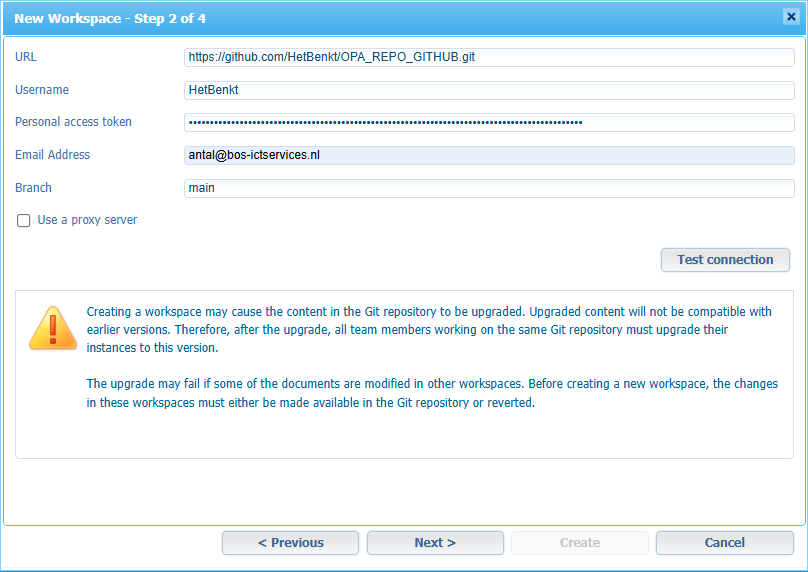
#OMG…That’s a failure! However, we can learn from it:
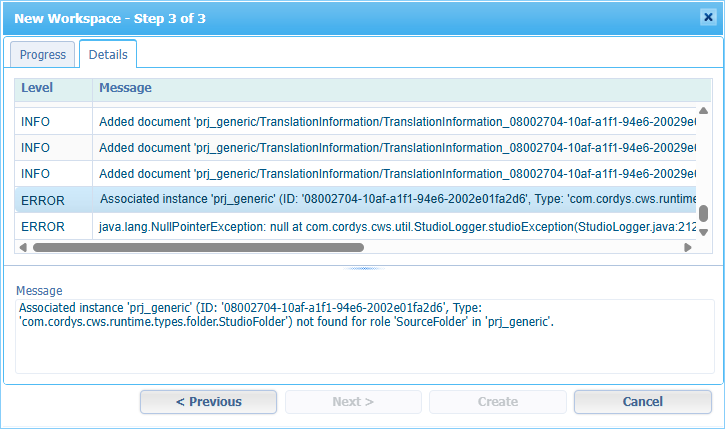
What is wrong here? Well, because of the heat (here in the Netherlands) I didn’t see (some screenshots back) the missing folders! Why are they missing? Well, in my project they’re empty AND GitHub doesn’t like to maintain “empty” folders! How to solve? Well, before doing the migration commands, ask your developers to add .gitkeep files in the empty folders. This way you have a solid solution that will always work. Do remember that we (as low-code developers) are not under control of what is saved in SCM. So, make sure your SVN sources are complete on empty folders, unlocked, and ready for migration.
…
These are the quick steps on how I solved my current situation:
- Create a new file in PowerShell locally:
New-Item .gitkeep -type file - Upload it to the empty folder of the project and commit the changes in SVN:
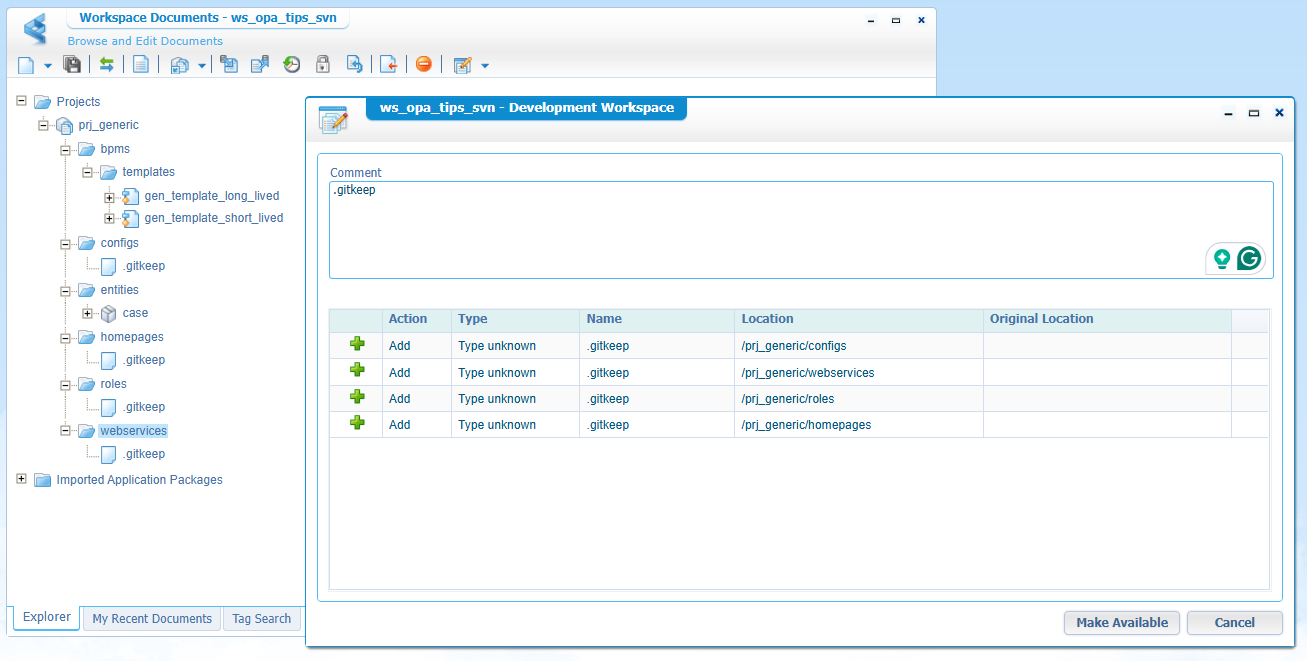
- Go into your remotely attached Git repo location
cd prj_generic-git - Run
git svn fetchto collect the SVN changes into your new Git repo (in themainbranch!) - Merge the changes via:
git merge --ff-only refs/remotes/svn/git-svn - Push all changes remotely:
git push origin main - Double-check the result:
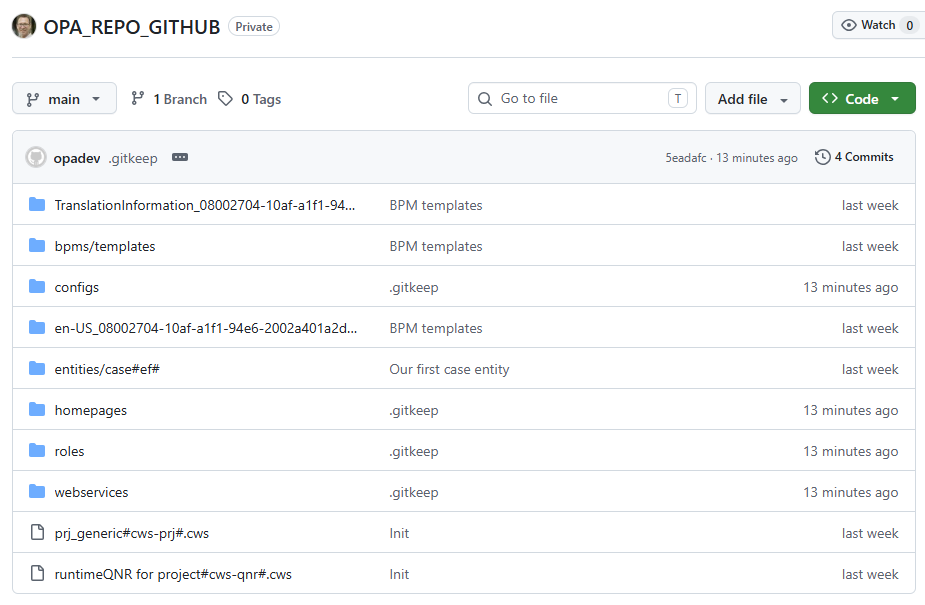
After this fix, it was another (similar) issue…Watch closely! Yes, I miss a parent folder prj_generic! So, in quick commands:
1 | cd prj_generic-git |
…
After the fixing section, it’s a party where all is working fine now; I added the ‘Lifecycle’ BB to the migrated ‘Case’ entity with a solid commit into Git! 🥳
I even tried an empty folder and checked the outcome in Git after a commit; it looks like the platform uses a file .identifiers to fill up the empty folder. After some Git browsing, I even conclude OPA adds this file in every folder (incl. the ones that do have content). So, I would not even upload those .gitkeep files to the project via the UI. I would add them already in the prj_generic-git location, push them remotely, and then create a new workspace, as those .identifiers files have a special magic touch during OPA commits.
Good to know that you can now also move on with TortoiseGit…a simple task to eXperience on your own!
Move from GitHub to VisualSVN
WHAT? Why on earth would you ever want to move from Git to SVN!?!? Comment below if you’re that person, and I’ll update the post for it!
That’s again a great migration “DONE”, where we moved our valuable solution data from SVN to GIT. It’s not that hard if you know how to accomplish such a task; now you know! Share it with your colleagues and we’ll continue the eXperience next week in another topic about Process Automation Tips…cheers! 🍺
Don’t forget to subscribe to get updates on the activities happening on this site. Have you noticed the quiz where you find out if you are also “The Process Automation guy”?
