


Hi there “Process Automation” fans,
Welcome to a new installment of “Process Automation” tips.
Sometimes you sit in sessions where you hear so much information that it is impossible to cover in one post. It’s all about security and hardening your VMs from the bad outside world. We already covered some reverse proxy settings via NGINX, but we can cover much more. So, for the next 4 posts we’ll cover SSL, TLS, HTTP/2, HTTP/3, fail-over, load balancing, and finish it off with a great test against our security configurations.
- Post 1: We’ll put TomEE in HTTPS mode over SSL with certificates
- Post 2: We’ll put NGINX in front of TomEE and move SSL from TomEE to NGINX
- Post 3: We’ll put HAProxy in front of NGINX to load balance multiple TomEE instances
- Post 4: We’ll use CIS-CAT Lite to assess our security configurations (including a lighthouse assessment)
For this post we’ll build this scenario:
1 | Client/Internet |
Let’s get right into it…
We’ll start with a clean VM with a standard OPA installation served over TomEE behind URL http://192.168.56.107:8080/home/opa_tips and an OTDS instance behind URL http://192.168.56.107:8181/otdsws/login
I’ll leave the OTDS URL out of scope for this post; it’s a Tomcat instance that you can configure to serve over HTTPS in a comparable way.
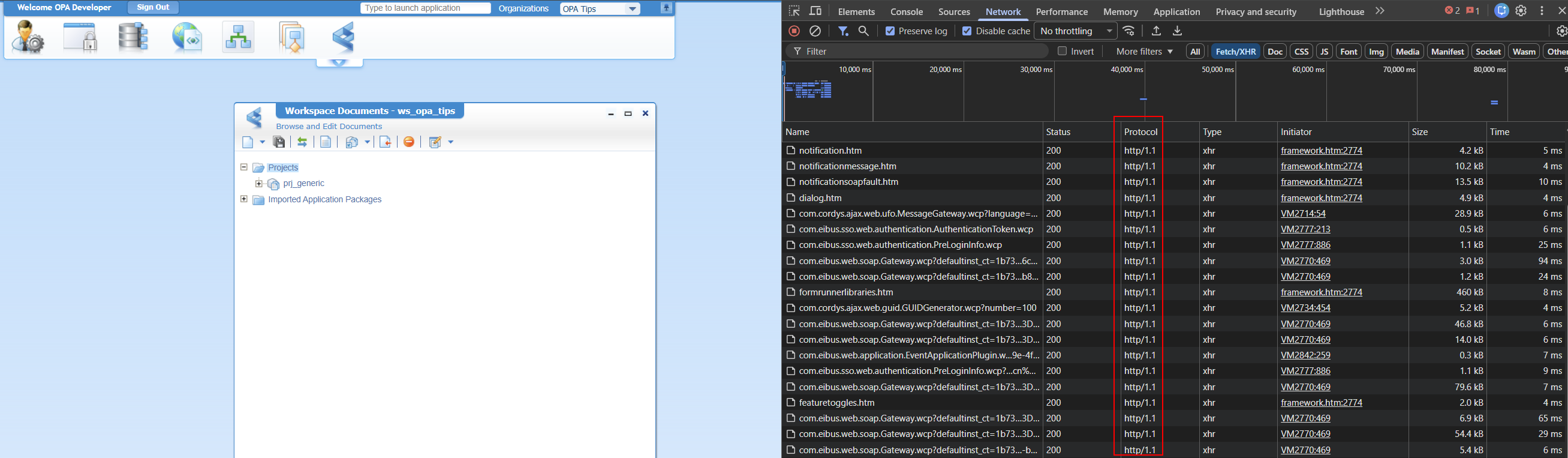
First things first…How on earth can we move from HTTP to HTTPS for a TomEE instance!? Quick research tells me that TomEE by default runs HTTP/1.1 over port 8080. Have a look in this configuration file: sudo vi /opt/tomee/apache-tomee-plus-10.1.2/conf/server.xml
1 | <Connector |
In the developer console of Chrome, you’ll see it here:
In this same file, we can create a second “Connector” with this content part:
1 | <Connector |
This connector depends on a file localhost-rsa.jks which (for a DEV environment) you can easily create with this command:
1 | keytool -genkeypair -alias tomee -keystore /opt/tomee/latest/conf/localhost-rsa.jks -storepass changeit -keypass changeit -dname "CN=opa.mydomain.com" -keyalg RSA -keysize 2048 -validity 3650 -ext "SAN=dns:opa.mydomain.com,ip:192.168.56.107" |
Notes:
keytoolis part of Java required to run TomEE- Make also sure you use Java 11+, but who is not these days!?
- This creates a so-called “Self-signed” certificate!
- For production, I recommend using Let’s Encrypt with the Certbot ACME client. I leave it out of scope for now.
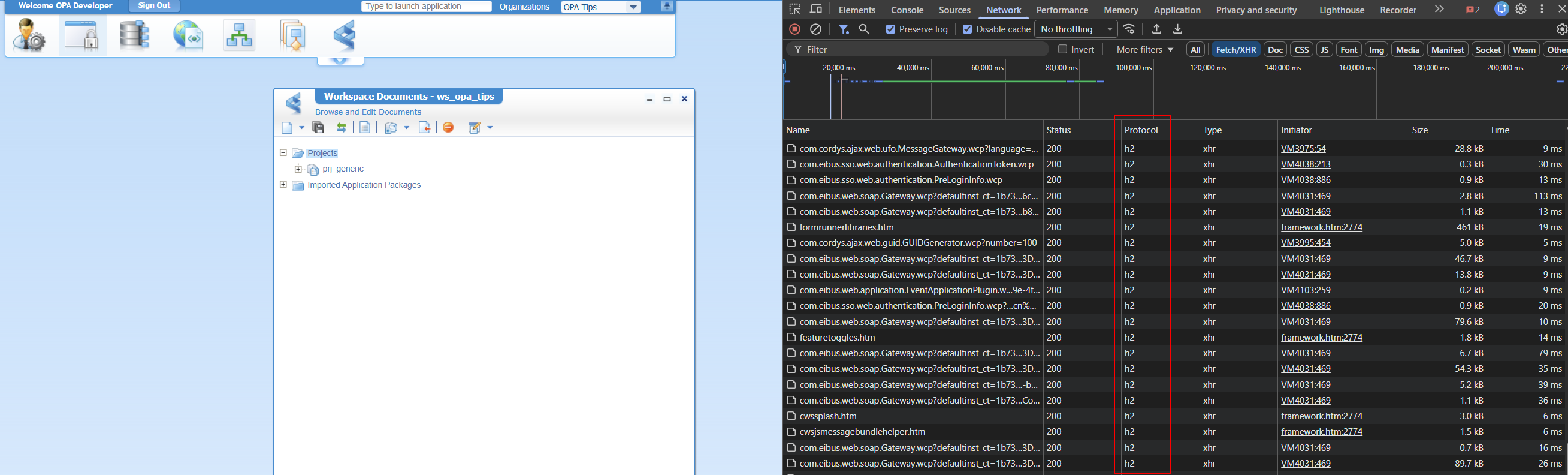
With the new connector in place and after a restart of the TomEE instance, you can now access OPA via HTTPS URL (watch the port number): https://192.168.56.107:8443/home/opa_tips
The developer console will now tell you this:
Why
h2and not justhttp/2?h2is the official protocol identifier for HTTP/2. It is not a version number like HTTP/1.1. FYI: HTTP/3 will beh3!
NICEEEE…we’re making progress, BUT you might have noticed this:

Is it too bad? Nope, that’s just your browser complaining about your self-created (and self-signed) certificate. You can view it, and you can even export it as file opa.mydomain.com.crt:
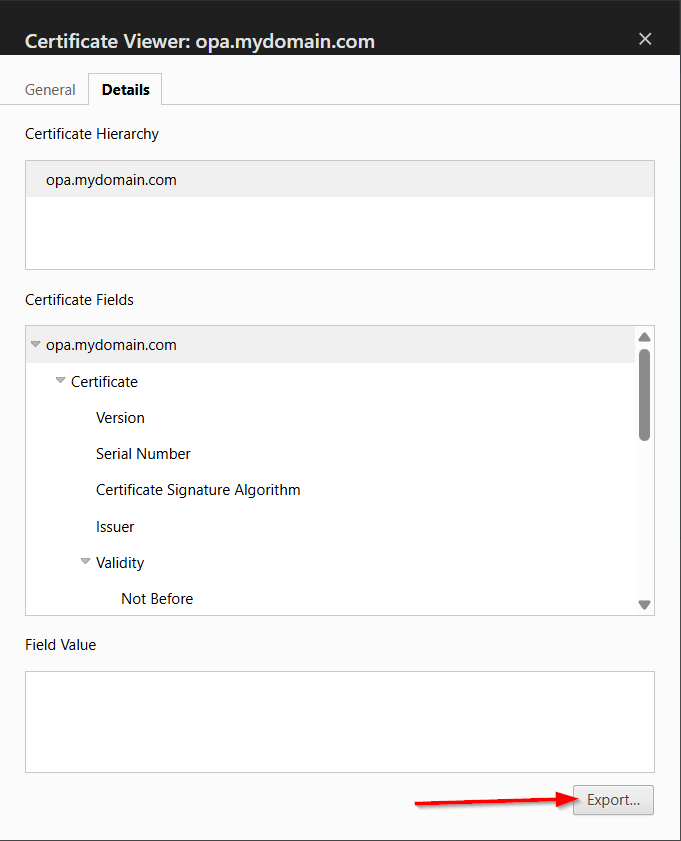
FYI: A browser only “trusts” certificates from a Certificate Authority (CA) like Let’s Encrypt, DigiCert, and GlobalSign.
What do you do with this file? Well, you can double-click it (from Windows 11 where your browser runs), and install it:
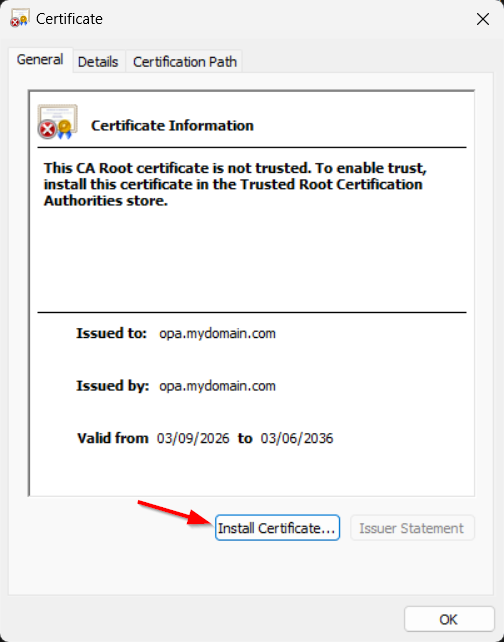
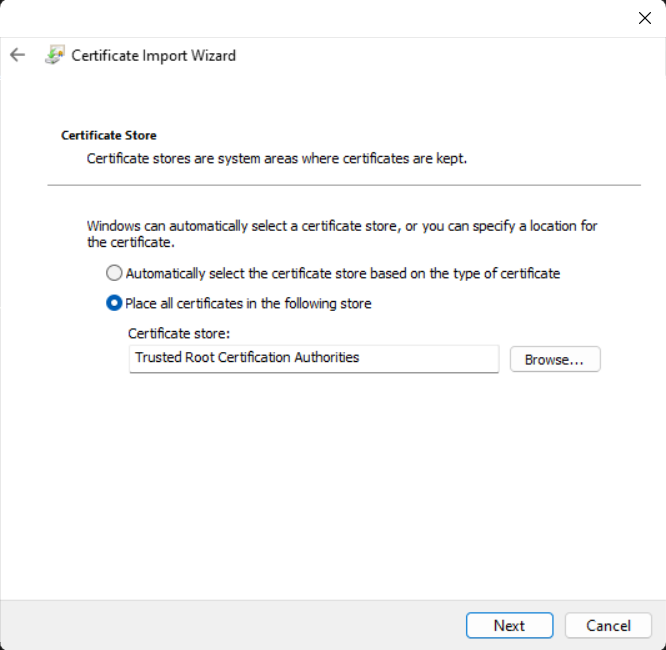
Make sure to install it under the store Trusted Root Certification Authorities:
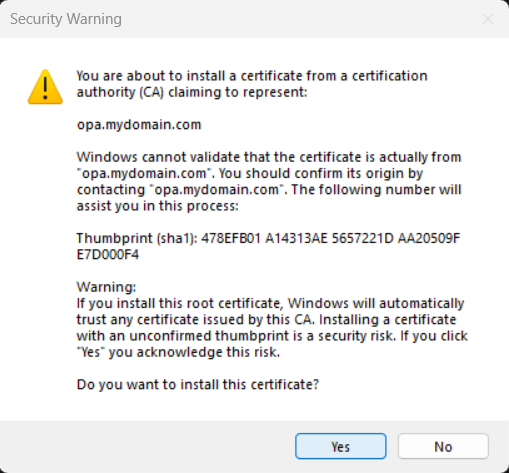
It’s our own creation, so we’re sure:
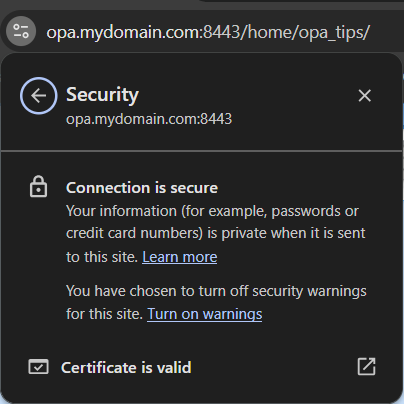
After opening a new incognito browser, we’re good to go:
Notes:
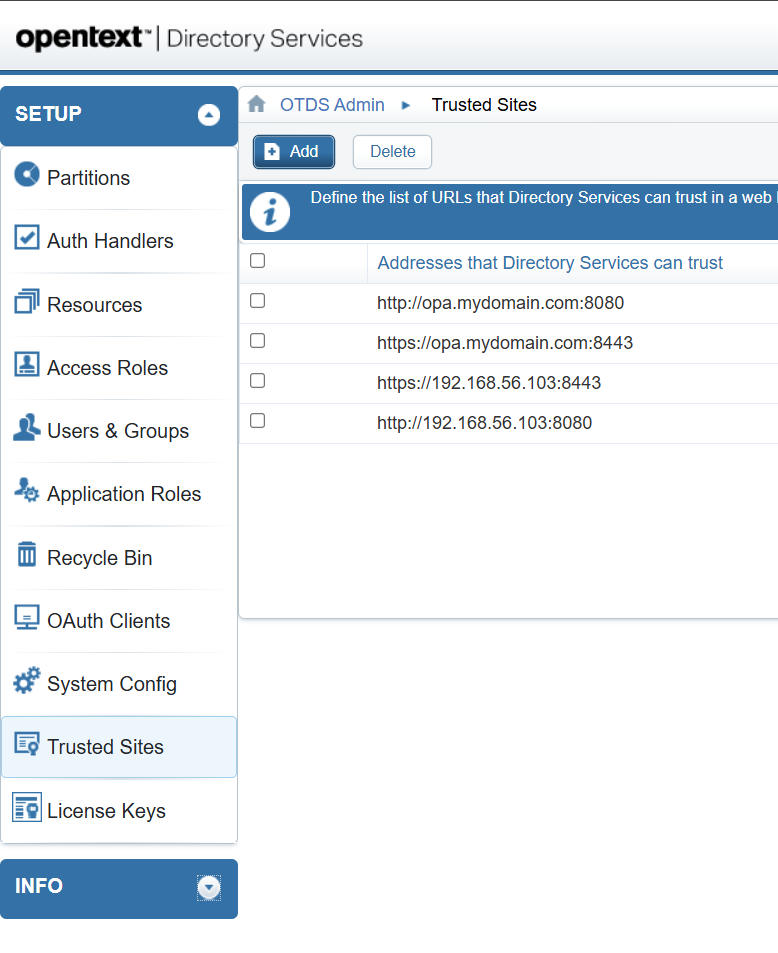
https://opa.mydomain.com:8443/home/opa_tipsworks because of an entry in my localhostsfile (in Windows); mine has this entry:192.168.56.107 opa.mydomain.com- Make sure to also trust your new URLs in OTDS to avoid weird movements:
It’s a party! 🥳
That’s a secure “DONE” where we serve our OPA UI behind a secure HTTPS connection in TomEE. Something we all want and these days the default for serving anything across the world. Be aware that a self-signed certificate is nice, but use a valid CA for a production environment to avoid installing each certificate in the client browser. This post gave great insights again into hardening our VM. Next week we’ll do the same task over NGINX where this module is much faster at serving content to the end users! At least, that’s what we’ve eXperienced before. Have a great weekend and we’ll continue the grind next week.
Don’t forget to subscribe to get updates on the activities happening on this site. Have you noticed the quiz where you find out if you are also “The Process Automation guy”?
