


Hi there “Process Automation” fans,
Welcome to a new installment of “Process Automation” tips.
Last week, we secured our TomEE instance and this week we’ll move that security to an NGINX instance. Why? Well, TomEE is an application server, not a web edge. TomEE configuration is complex, harder to automate certificate renewal, scaling gets harder, and load balancing becomes messy. You want to have TomEE as clean as possible to use it at corporate level. The advantage of NGINX? Native HTTP/2 support, central TLS config, easy scaling, and automatic certificate renewal (with the certbot of Let’s Encrypt!).
For this post we’ll build this scenario:
1 | Client/Internet |
Let’s get right into it…
We’ll continue our journey where we first remove (or better comment it!) the secure SSL Connector in the TomEE configuration. This way, we only have URL http://192.168.56.107:8080/home/opa_tips/ available or, if you have a hosts file entry, a URL like this: http://opa.mydomain.com:8080/home/opa_tips/
Now, we’ll first make sure to have NGINX up and running. For this I’ll follow my own post.
A_FEW_MOMENTS_LATER…
I now have this URL available (without port number): http://opa.mydomain.com/home/opa_tips/
It’s now an unsecure HTTP connection still over an HTTP/1.1 protocol. This is totally correct as HTTP/2 or h2 only works over TLS which is HTTPS! So, our next step is to make NGINX secure. I currently have this configuration in place:
1 | worker_processes 1; |
To make NGINX h2 ready from a browser perspective, we will add this in the server section:
1 | # SSL |
Make sure to comment/remove
listen 80;!
…
Now for that great question: How to get those .pem files? Well, there are 2 options. One is generating a new one from scratch:
1 | sudo mkdir /etc/nginx/ssl |
The other option is to extract those .pem files from our currently valid keystore at /opt/tomee/latest/conf/localhost-rsa.jks (the one generated last week!)
1 | # Convert JKS → PKCS12 |
After a configuration validation sudo nginx -t and restart sudo systemctl restart nginx, you should have URL access like this: https://opa.mydomain.com/home/opa_tips. Right? Well, wrong…you’ll see (blocked:mixed-content) errors in the developer console of the browser which is an issue on the TomEE connector side.
Edit the TomEE configuration again (the one with the connectors): sudo vi /opt/tomee/apache-tomee-plus-10.1.2/conf/server.xml. You have the 8080-connector out-of-the-box, but you need to extend it with “proxy-awareness”:
1 | <Connector |
After a restart of TomEE systemctl restart tomee, and opening a new browser on URL https://opa.mydomain.com/home/opa_tips/app/start, we finally see what we want. A secure HTTPS connection over the h2 protocol:
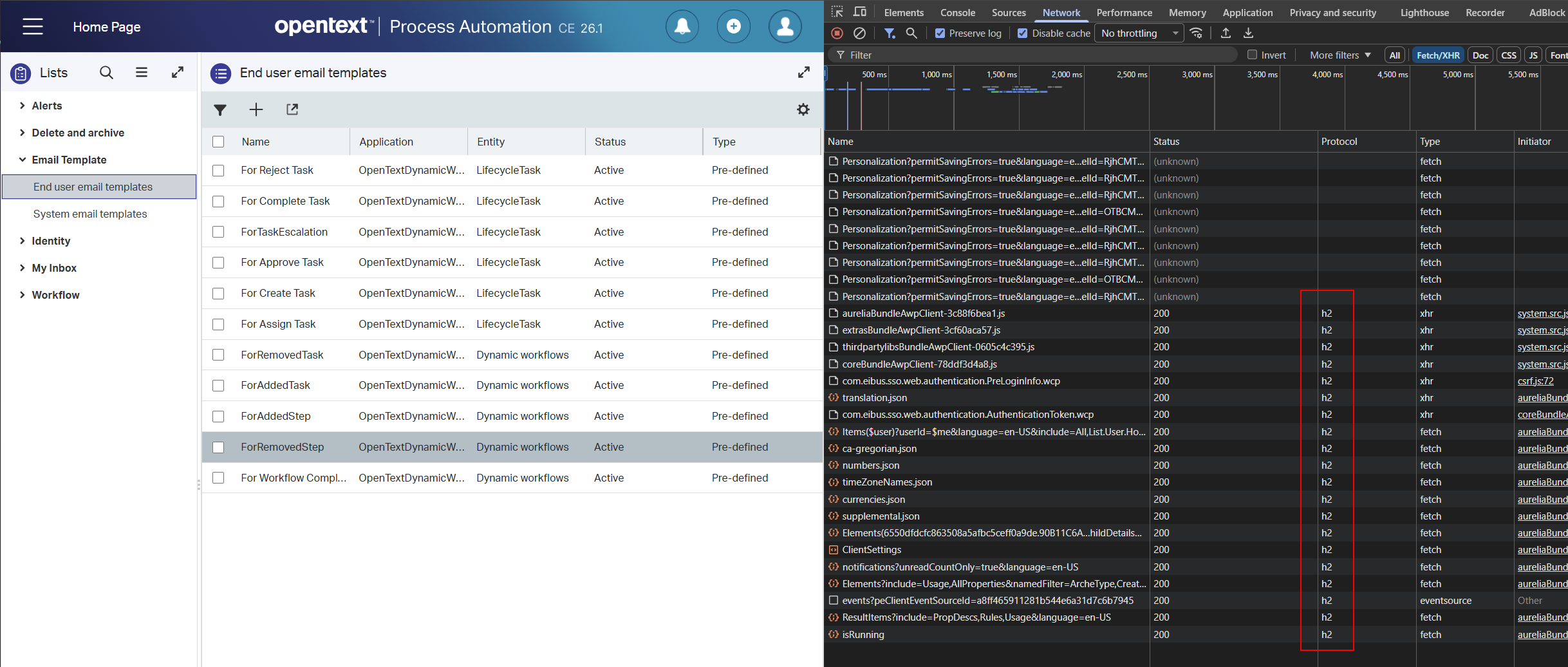
That’s a party! 🥳 🤠
Again, a secure “DONE” where we moved our secure TomEE endpoint to a secure NGINX endpoint. A rather easy configuration if you ask me, but I got more knowledge about the “security” topic already from the last post. Know you see the importance of just executing on your tasks; It’s just like training a muscle in your body. Keep trying, keep failing, and eventually it’ll work the way you want it to work. Have a great weekend, and we’ll move on with the load balancing part of our series of posts.
Don’t forget to subscribe to get updates on the activities happening on this site. Have you noticed the quiz where you find out if you are also “The Process Automation guy”?
