


Hi there “Process Automation” fans,
Welcome to a new installment of “Process Automation” tips.
This post exposes a valid use-case for using “Staging” packages! The last time (2020!) about the concept was in this post! So, you see how often it is used. Only, the tide has now turned seeing the value with a valid use-case passing by during collaboration with another comrade in crime. It’s always interesting to hear how other do their tricks and this one opened my eyes again on the concept of “Staging” package…Which I will now start to use more often (where required!)…
This is a great quote from the documentation about “Staging” packages:
2
3
business-critical application parameters instantly,
that is without requiring engineering activities.
Let’s get right into it…
So, what we’ve learned so far about “Staging” packages is that you can manipulate the content behind it after deployment. Let’s look at two interesting scenarios:
“Calendars”
Have a look at a year; It has some public holidays and some vacation periods. All non-working days! We learned here about this “Calendar” topic and how we can calculate next business days. All nice and great, but a year does not always have each public holiday at the exact same date AND dates will change (like king/queen birthdays)! #WTF? Yes, and that’s exactly what a “Staging” package can help you with…Changing the days for that new year to come!“Schedules”
With a schedule, we can start recurring tasks, but the input of such task might change! Again, in a “Staging” package you can manipulate this without repackaging a solution. AHA! Now it’s getting interesting…”undeploy” and “deploy with (new) time” is still an option for a schedule (from a regular CAP deployment), but changing input is “Staging” functionality.
Let’s slice this post into some sections for both scenario’s…
Project initialization
First things first as you want your “Staging” package in a separate project in your workspace, because of the packaging properties for that project. Watch this view so far with the correct packaging setting (see context menu of the project), to prepare for staging deployment:
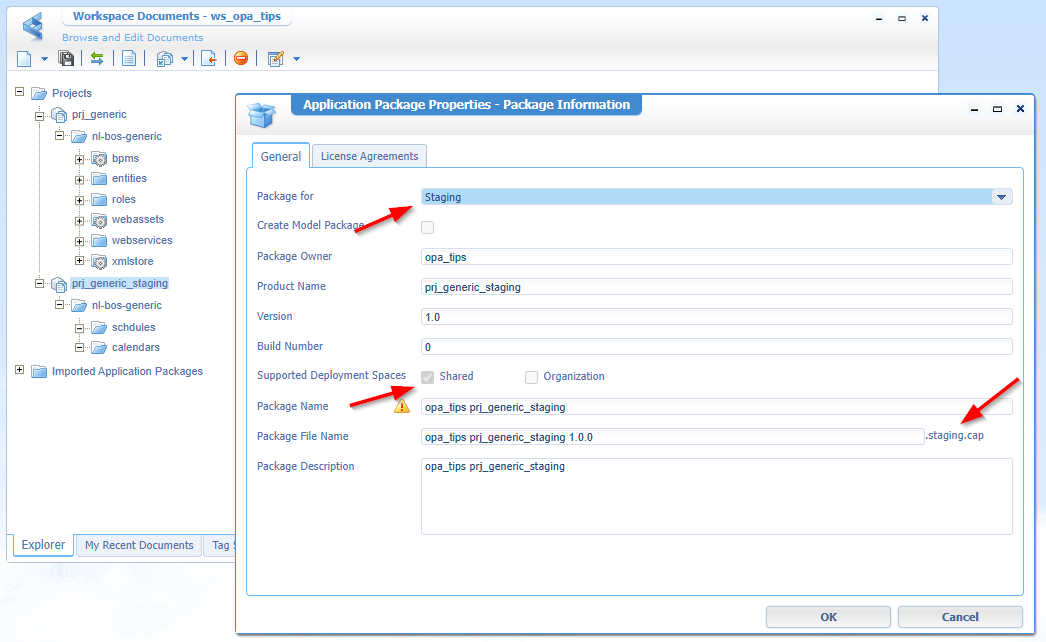
The small “staging” letters (aka notes), you must be aware of:
- This only works for the “Shared” (/system) organization.
- Watch the
.staging.capfile extension!- You can “deploy” it as any other CAP package with the ‘Application Deployer’ artifact.
- Undeploy will remove it also from the other organizations (as it’s a “shared” package!).
- Use the ‘Applications Manager’ artifact to eventually publish the “Staging” package (with your changes!) into runtime.
- Be aware that you can add additional document types to this package, like entities, BPMs, etc.; Be cautious what you’re doing here…Or better; Don’t do it here!
- When you change things, this is organization specific! So, when you would undeploy and redeploy, your changes are gone in the ‘Applications Manager’ artifact. However, you can still find your changes in runtime (and in the database), but they will live an orphan life without any further packaging control!
- Once you’ve done an update in the ‘Applications Manager’, you can’t deploy (via the ‘Application Deployer’ artifact) an upgraded version of the “Staging” package.
- Source dependencies from staging packages to runtime packages are not allowed, so a schedule with type BPM/service (that uses something from another project!) is not possible…Tip: make it a service type and run your BPM via service call
ExecuteProcess!- In short…Don’t ever do any entity modelling in this type of project!
Next, we need something to deploy to; A second organization which is all explained here. From a ‘/system’ perspective, have at lease these two organizations in place:
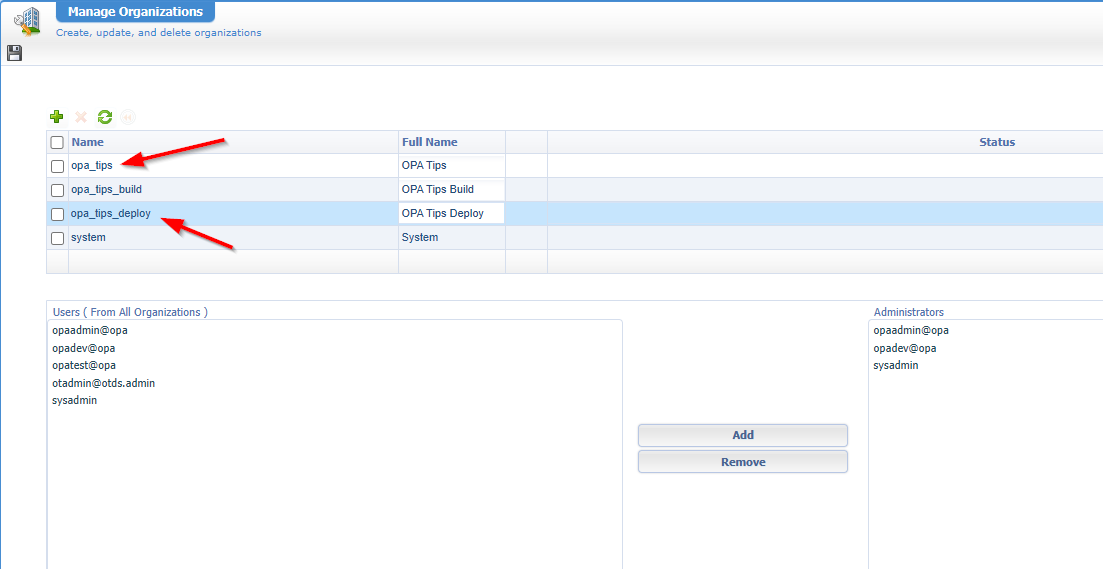
I know…It’s a “Shared” package, which we deploy in shared! We use that “Deploy” organization to fiddle around with this “Staging” package!
Hereby a best practice on a solid organization structure for multiple developers (this is only for the DEV environment!):
- “opa_tips_dev_x”; Each developer has its own “Dev” organization to implement his things. Once done, it gets a commit to a central source control system (SVN/Git) where others collect changes in their own organizations.
- “opa_tips_build”; Once all developers are done, you hold/pause development, collect all changes in this organization to build packages for your projects. Further deployment is not needed.
- “opa_tips_deploy”; Once packages are ready, you can deploy them here, and test whatever you want to assess…With solid test accounts!
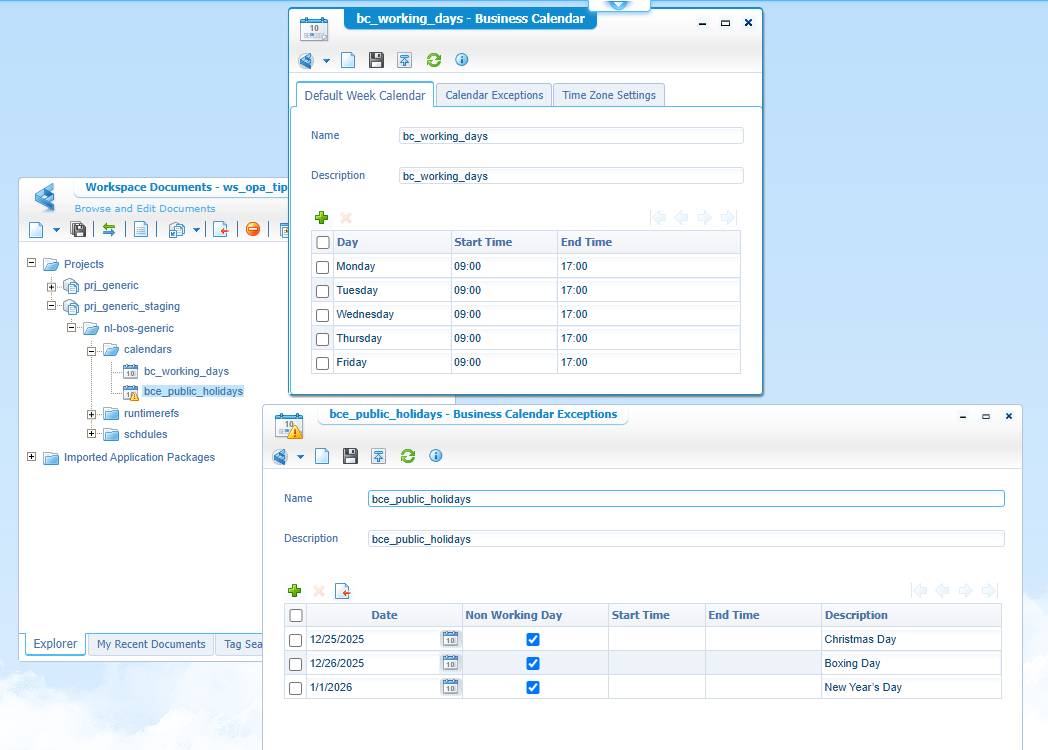
Calendars
For this one, I follow my own post…
This is the end-result to play with:
Next one…
Schedules
For this one, I follow my own posts behind the “Scheduler” tag.
This is the end-result to play with:
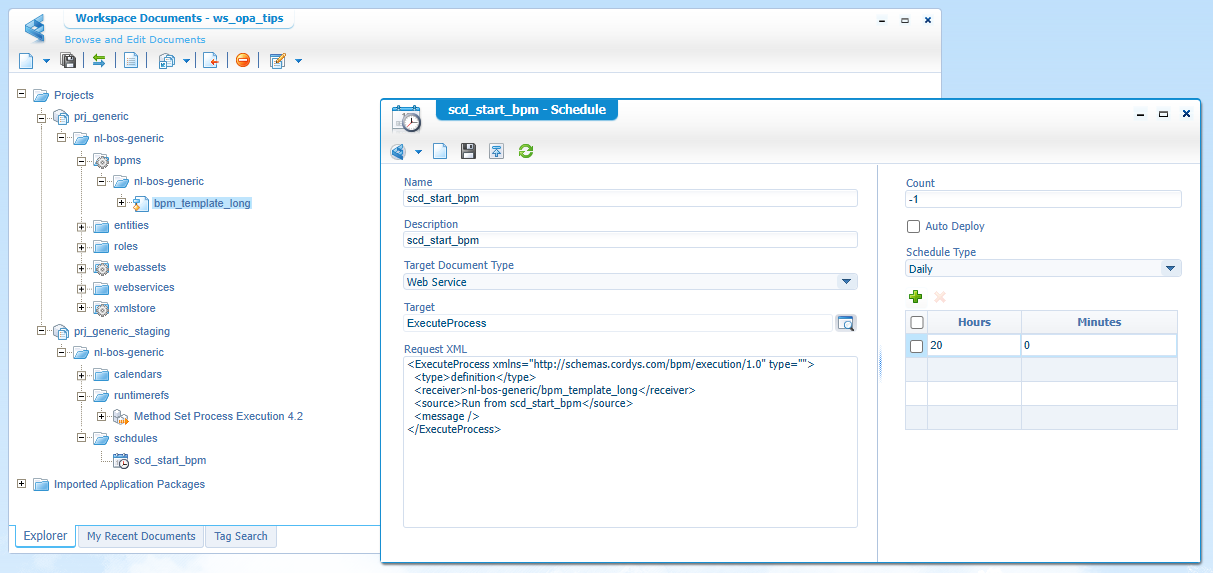
Notes:
- You need the runtimeref ‘Method Set Process Execution 4.2’ in the project to call ‘ExecuteProcess’ (check the right-click context menu or read about it here)
- You also see we call
bpm_template_longfrom the other project. So, we need a CAP file where the BPM is part of, to make the service call a success. Important here is that you don’t have a direct dependency, but a more indirect (loosely coupled) dependency, which is much better!
Packaging, Deployment
Now, right-click both projects and create packages out of it. The end-result will have two files:
opa_tips prj_generic 1.0.0.cap, which we deploy in ‘/opa_tips_deploy’opa_tips prj_generic_staging 1.0.0.staging.cap, which we deploy in “shared” ‘/system’
These are the package properties for the other project…let it deploy nicely in a specific organization!
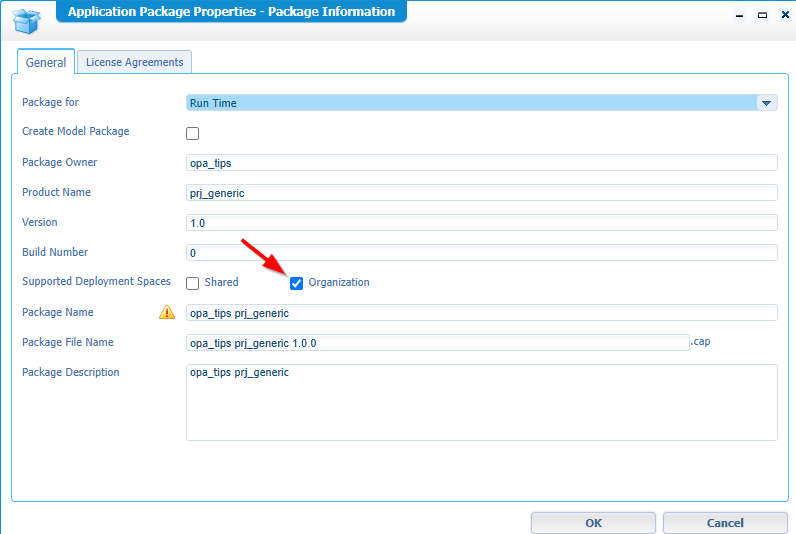
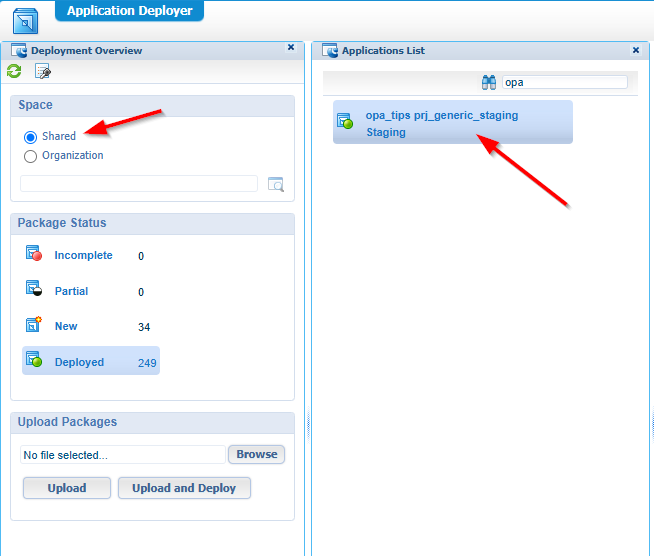
Move yourself to the ‘/system’ organization (with an administration account), and open the ‘Application Deployer’ artifact. Make sure to deploy the correct package at the correct organization. So, our “Staging” package in “Shared”:
This is the other package (containing my BPM!)
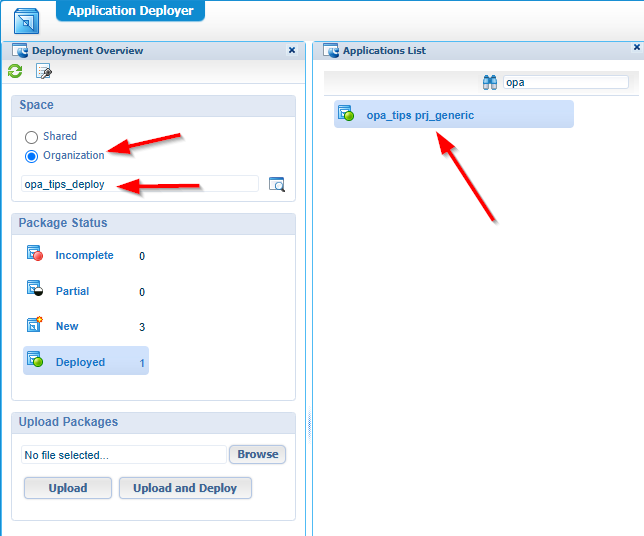
These are views after deployment! I assume you know by now how to deploy a package…If not; Read these posts.
So, that’s all on the packaging & deployment…Easy if you’ve done it before! 😏
…
Now, go to the “Deploy” organization, and see what’s available in the ‘Applications Manager’ artifact:
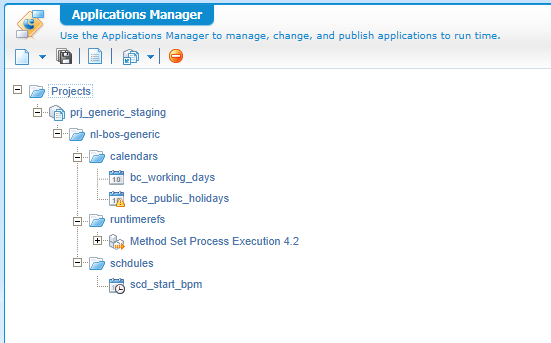
NICEEEE! Ready for you to manipulate and do a deployment in runtime…AHA!
I see that I’m also still human with a typo in the folder name:
schdules! 🤫
You can open those “Staging” documents, change them, and deploy them, BUT we first check something else…
“Staging” manipulation
As “seeing is believing”, we do two tests; One for the calendar and one for the schedule!
Calendar test
For this test, we first deploy our “calendars” folder. After this we’ll call this service via the ‘Web Service Interface Explorer’ artifact:
1 | <SOAP:Envelope xmlns:SOAP="http://schemas.xmlsoap.org/soap/envelope/"> |
Make sure to use the correct service call; The one from
Method Set Business Calendar!
These are the results for different business days:
| Days | Result | Notes |
|---|---|---|
| 1 | 2025-12-23T16:00:00.0 |
That’s the end of the next day! |
| 2 | 2025-12-24T16:00:00.0 |
One day later; one day before Christmas |
| 3 | 2025-12-29T16:00:00.0 |
29?? Why not 25? Well, that our exception which includes the 26th, AND the weekend after it! |
Great test…with a small catch, but that’s fine! Now, let’s say that the 29th of December is now also a public holiday (for whatever reason)…How would we update this in runtime? Well, lucky for you, we have a “Staging” package in place; We can edit the exceptional days, add the 29th as public holiday, and do a publication:
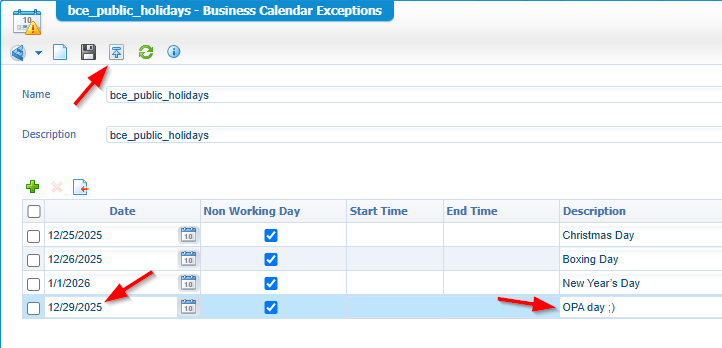
Do that service call again with 3 days in place, and watch this:
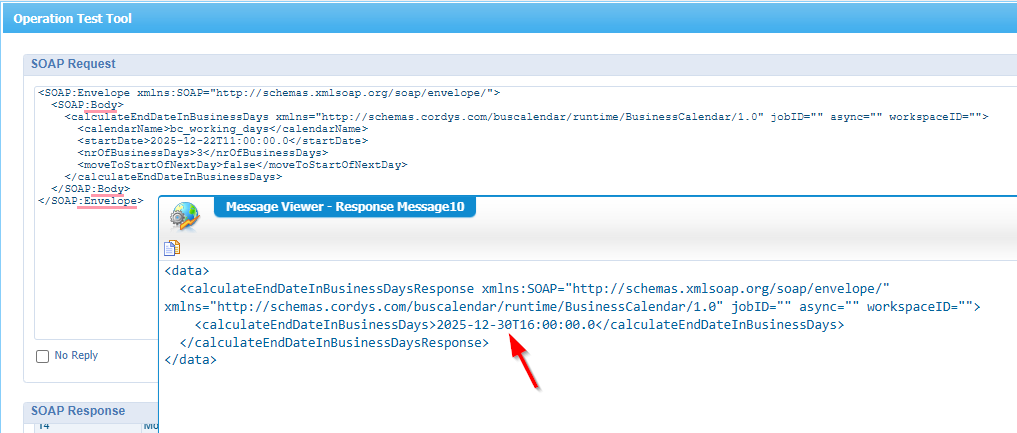
That’s a “Staging” party for calendar updates! 🥳
…
Schedule test
For this test, we first deploy our “schedules” folder. After this we’ll dive into the ‘Schedule Manager’ artifact where we also deploy our schedule to the ‘Active Schedules’ tab, and run it with that shinny button:

From the PIM, you can now see a BPM instance passing by of our BPM template:
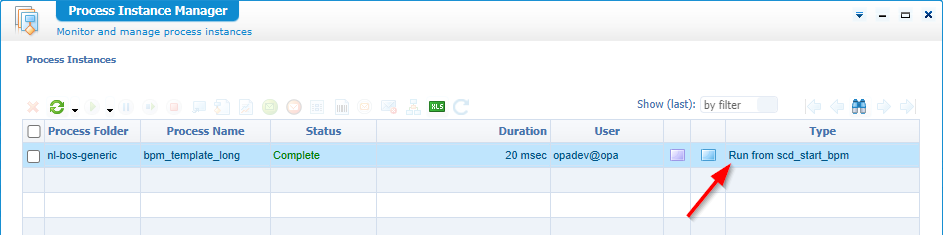
Remember that note? Yes, it’s configured in the ExecuteProcess call for our schedule…What if we want to change that note? Well, lucky for you, we have a “Staging” package in place (🙃); We can edit the source message, and do a publication:

Run the schedule, and watch the PIM again:
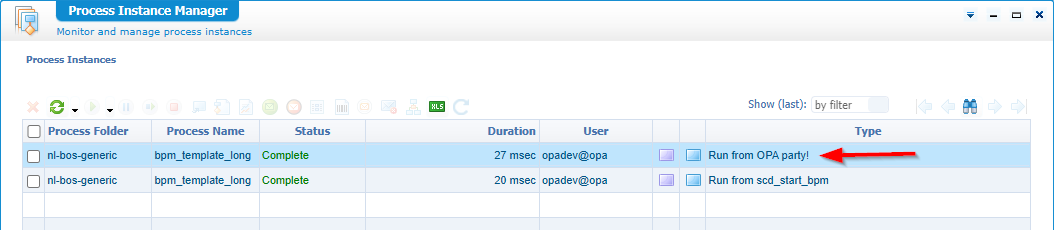
That’s (again!) a “Staging” party for schedule updates! 🥳
Bro-tip: If it’s not working directly, undeploy, and redeploy the schedule again! You can also imagine that when your BPM has an input message for example, you can manipulate that schedule the same way for the now empty
<message/>element.
That’s a “DONE”; You see what collaboration with others can bring to the table. If you share, they share back…It’s a continuous circle of improvements between people. This is why “Process Automation Tips” saw the light 7 years ago and this is exactly the purpose behind this mindset! Sharing is caring where others will benefit, but closed doors will magically open for you! Have a great weekend and I CU next week on a brand-new topic about our all beloved OPA platform.
Don’t forget to subscribe to get updates on the activities happening on this site. Have you noticed the quiz where you find out if you are also “The Process Automation guy”?
