


Hi there “Process Automation” fans,
Welcome to a new installment of “Process Automation” tips.
Let’s first start with a red-flag…The title quotes about mixing cases-work with task-work in one solution. Every project that tries to implement this mix is eventually a failure. You work either case-related or task-related. Don’t make the mistake to jump from case to task and back to case for the next task; it’s a terrible eXperience for your valuable end-users.
So, that’s from my heart…Now for the post; we do understand that “managers” work with tasks and “knowledge workers” work with cases, but split the two from each-other smartly. For example, with a case-management homepage and a task-management homepage. To make it even more clear you’re working in a task or a case…Use colors/icons which is exactly what we implement in this post in a smart and solid way; that’s not touching the default settings for components on a form, but use CSS with a clever trick.
Let’s get right into it…
Before we start…Another things I need to write off first! Form components on a form (like property input fields) have the option to style them with colors, text decorations (bold/italic), and font types. Nice, but leave it as is. You style a web application UI in CSS, not at form level (which is eventually just inline styling raising a #RED_FLAG!)
Now let’s dive into a fascinating implementation of a quick Case Management Solution (CMS). It’s a solution with two homepages (one for the “knowledge workers” working with cases; one for “management” working with tasks). We use a simple two-property ‘Case’ entity with the default generation of the standard building blocks. After that you can add a quick 3-step lifecycle implementation (just to get some tasks to play with; all assigned to a “management” functional role):
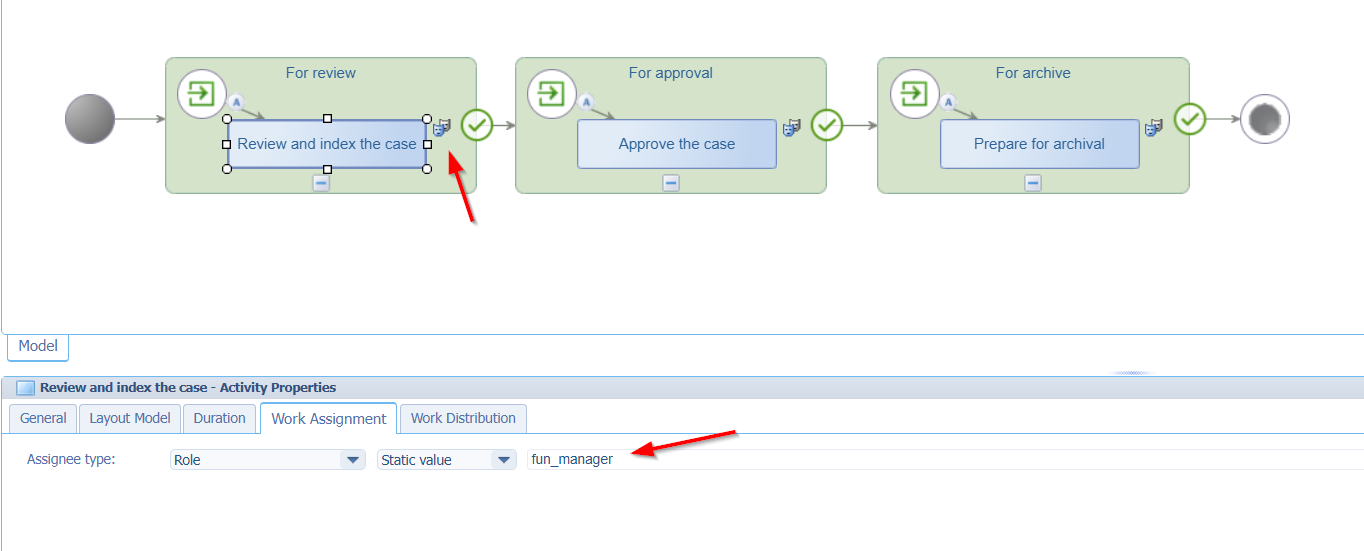
I add the ‘Security’ BB to the ‘Case’ entity where “managers” can view and update case data (from a task perspective), but they can’t create/delete any cases. Creating, updates, and deleting is a “knowledge worker” decision! From a relative ‘LifecycleTask’ entity, you can also apply the ‘Security’ building blocks where “managers” are in the lead completing the tasks where the “knowledge workers” don’t have this specific privilege (to keep it all simple for this post)!
My case layout will have additional panels for the lifecycle view AND the tasks (read-only via a grid panel on a new form frm_tasks)! You can also use a ‘Tasks’ panel here, but that provides far more power to the “decision workers”; They only require to see the task progression (for our use-case):
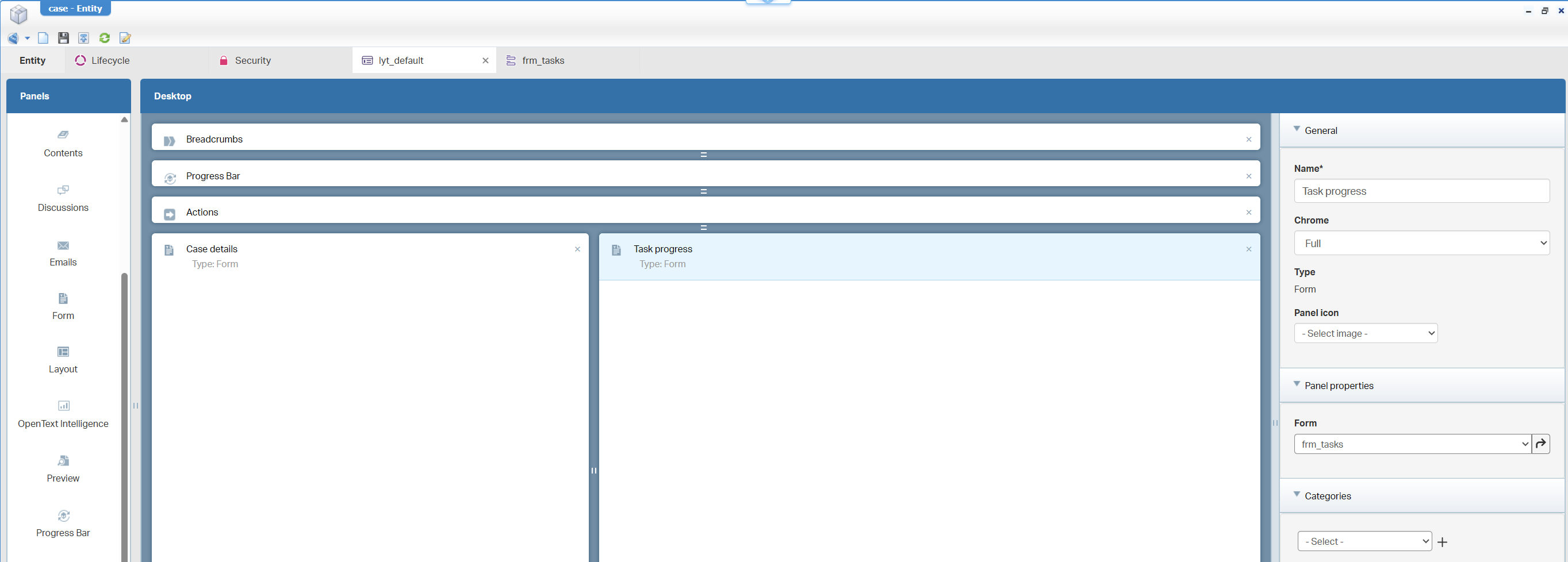
FYI: when you want to add the ‘Tasks’ panel because it looks better (which I agree), you can disable all actions with a ‘no actions’ actionbar, AND add CSS to this panel, so it’s not clickable for opening the task! Read about this hack here.
Before you publish, make sure you have a test account(s) with the proper roles in place, and evaluate the solution so far:
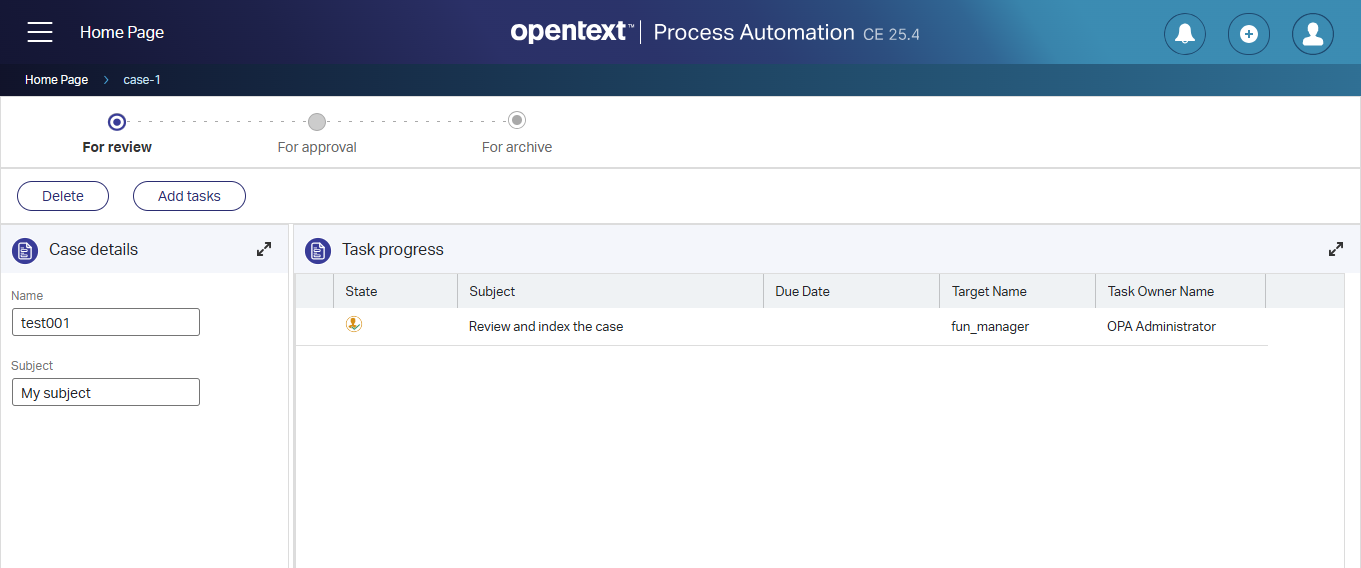
So, the “knowledge workers” can do their case tricks, but can only view task progression from “management”!
…
Maybe you’ve spotted already a glitch as “management” can still view the cases (from the ‘All cases’ list). This is fine for now, but we want this only from a tasks’ perspective! So, we first disable that ‘List’ BB showing up in the list panel. Next, we split the logic in half with two new homepage layouts (hp_case_management and hp_task_management). Both will have one ‘Results’ panel running a list; where the all_tasks is a new one on the related ‘LifecycleTask’ entity showing task related details.
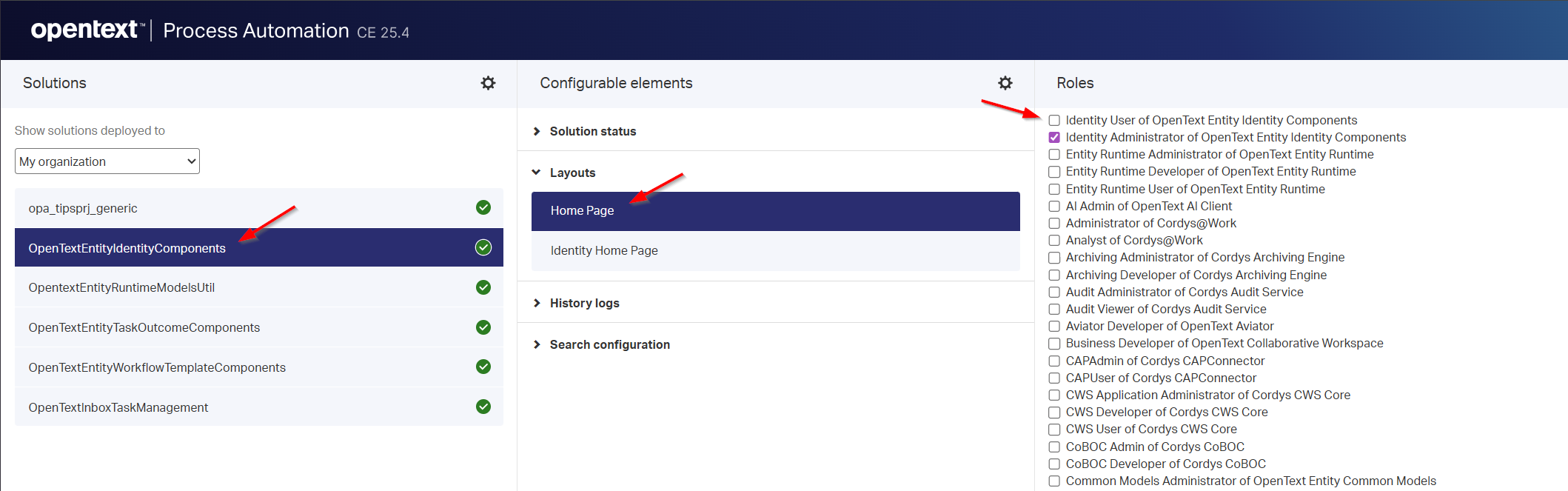
A homepage has a runtime security configuration in the context menu. Set it to the proper roles we defined before to make the split of content solid. After publication, the “knowledge worker” has a homepage and “management” has its own homepage. However, they both still see the default “Homepage” from the platform! Aha…but that’s something we can disable in ‘/app/admin’ of the solution:
With this homepage split in place, we only require a form for our task instance. Name it Default and show some task details with some (read-only!) case details:
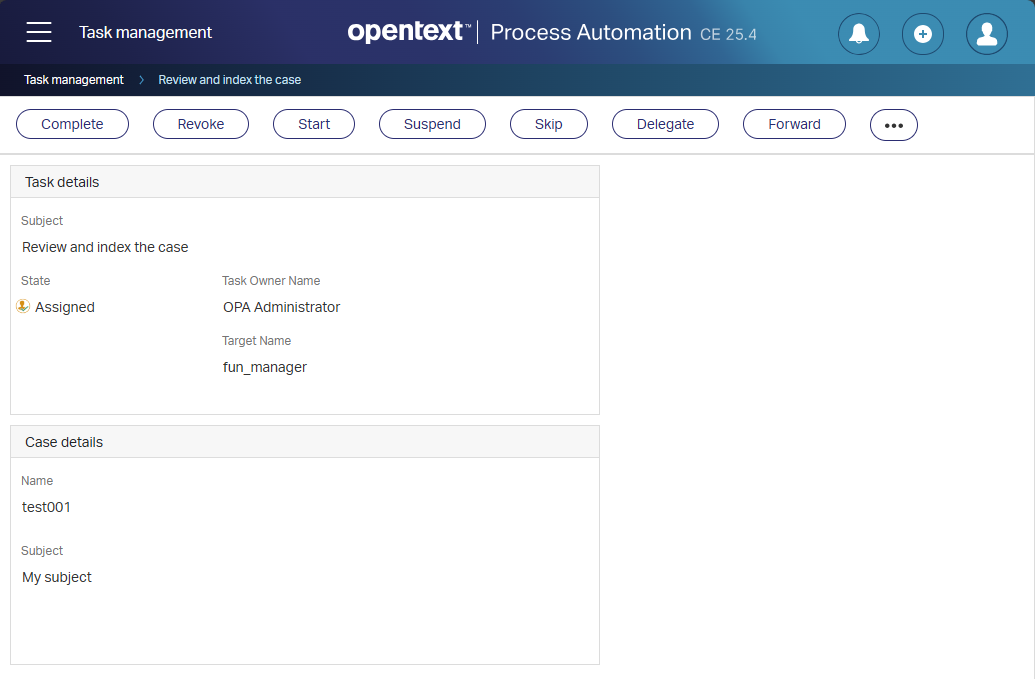
The full split is a fact now; “Knowledge workers” can work on cases and view the progress of the tasks; “Management” can work on tasks and view details of the cases. Time for the next phase!
…
Next thing is adding colors to both ways or working! AND the best way of implementation (in my opinion), is via CSS! However, we first need to change the ‘Default’ form on the relative ‘LifecycleTask’ entity into a layout for the task view details. I name it lyt_default showing a breadcrumb, action, and form panel (showing the ‘Default’ form which I renamed to frm_view).
The benefit of this last change is this small option:
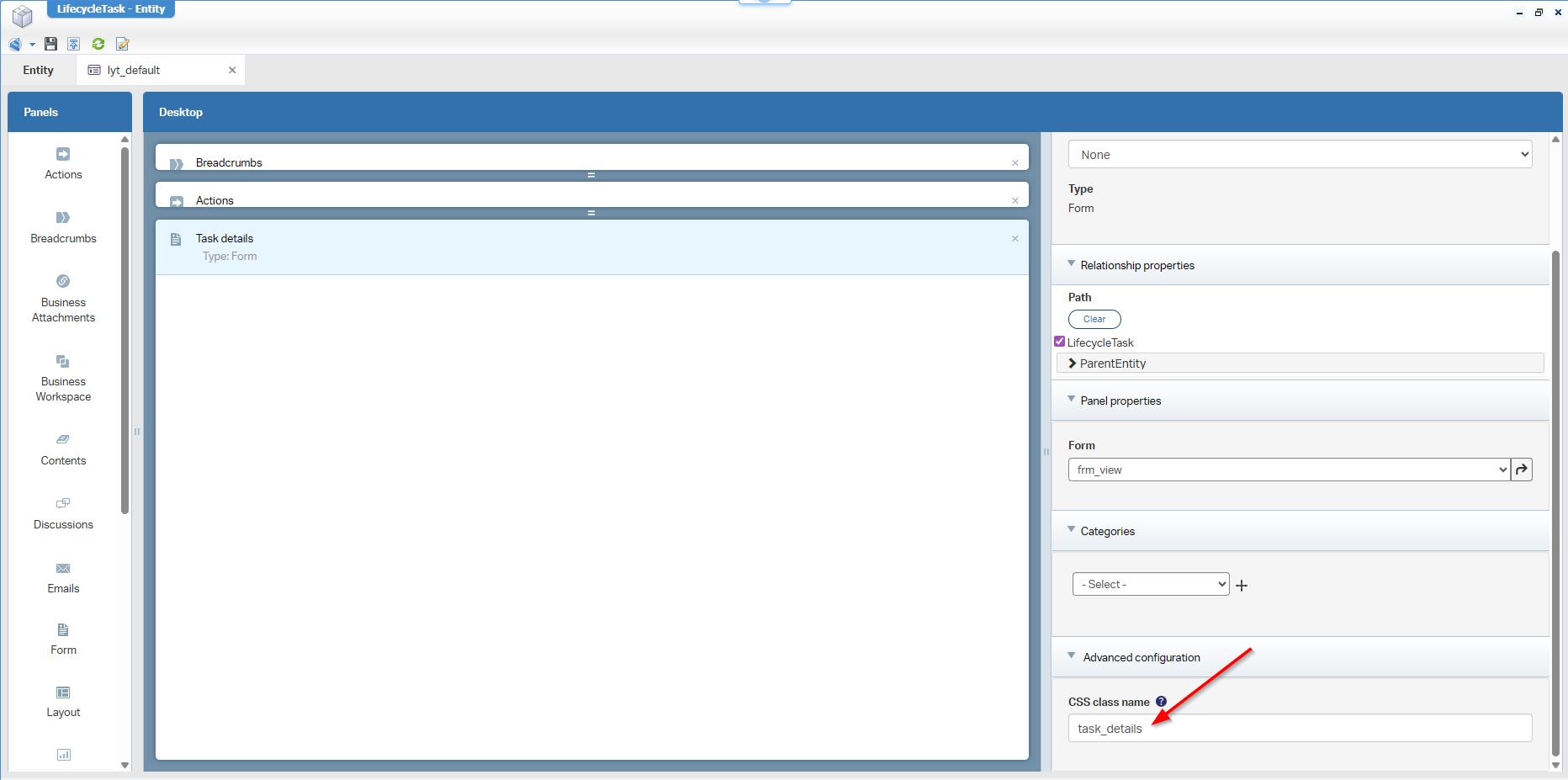
We can do that same option in the lyt_default of the case itself…with CSS name case_details. I do it only for the “form” panel, but every panel in a layout has this CSS trick…AHA!
Nice, but what can we do with these changes? Well, do a publication and check this in the developer console of the browser for your task layout:
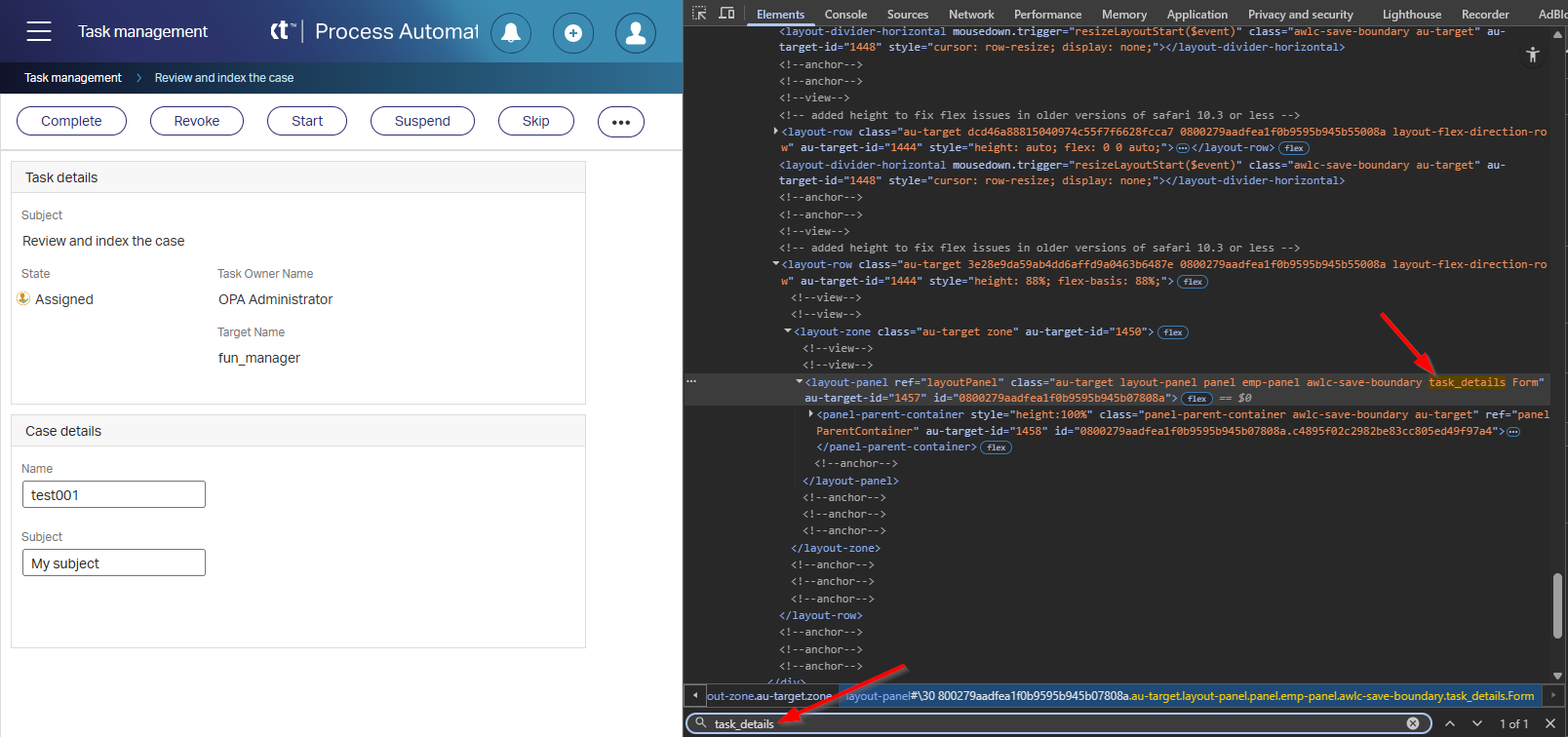
You’ll find the same for the case layout:
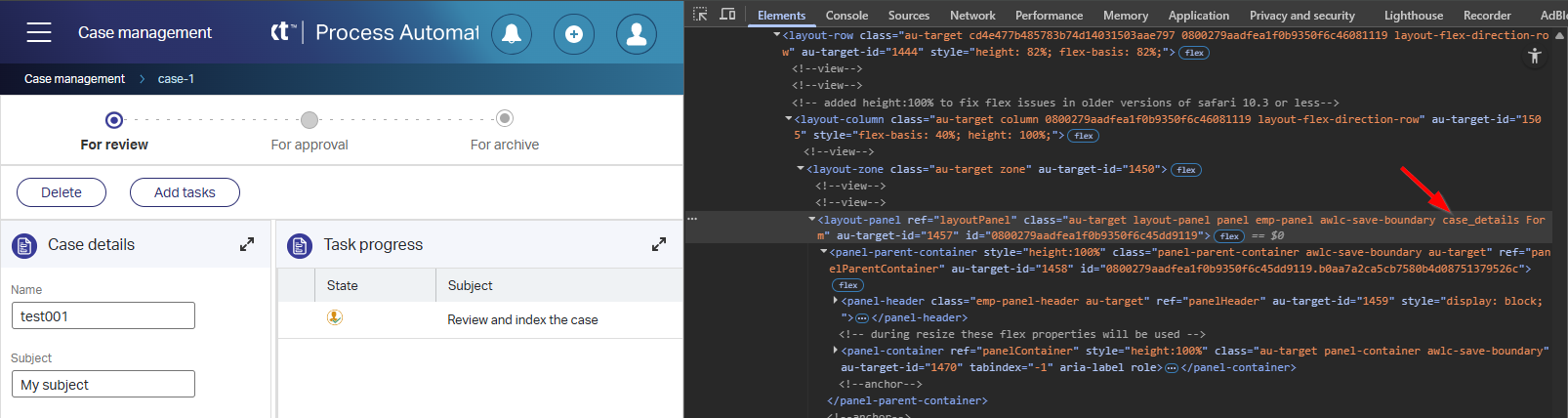
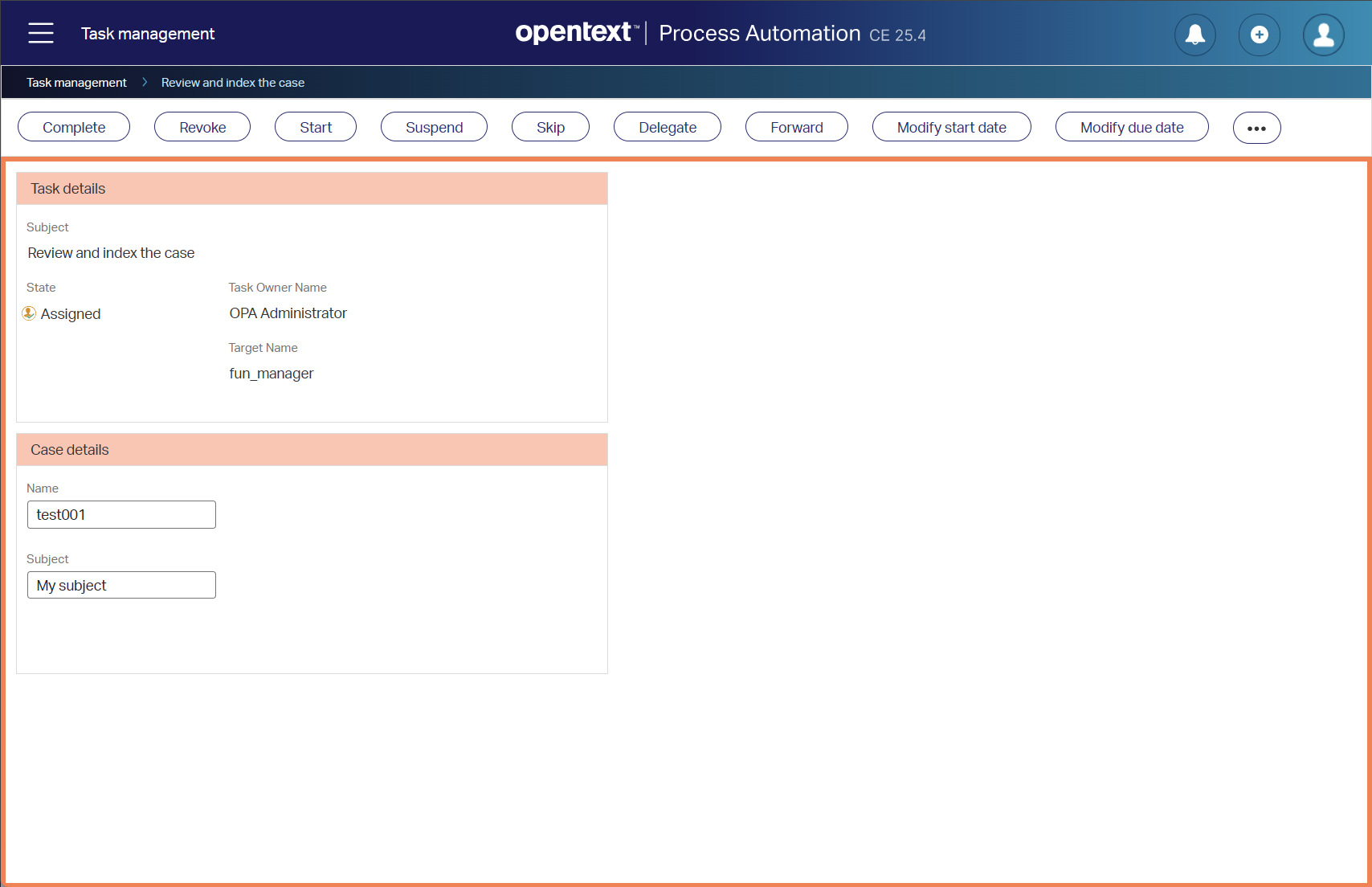
Now, watch what CSS magic we can do for the “task”:
OR for the “case”:
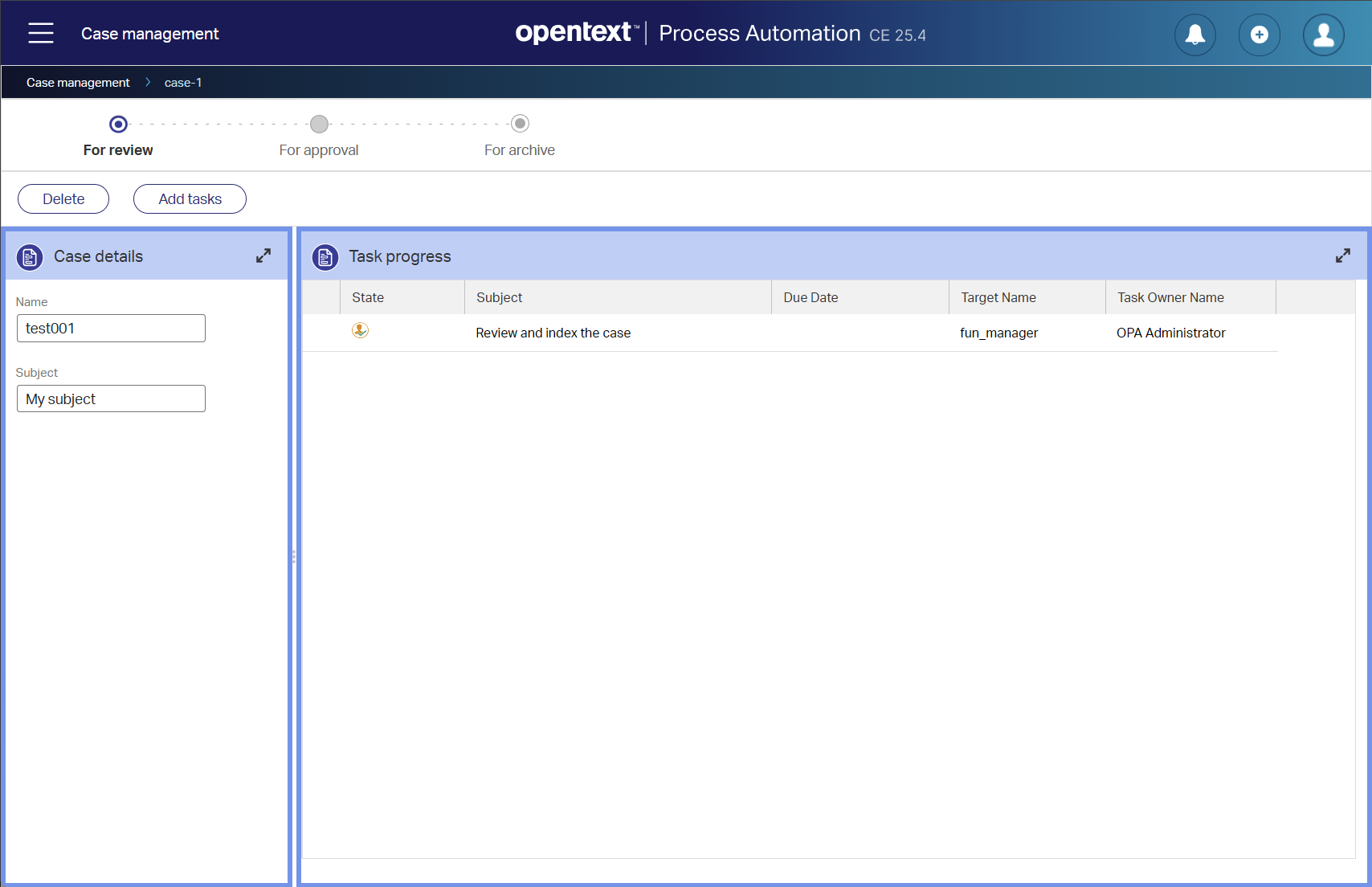
This is the CSS code behind both screenshots (easy and simple!):
1 | .task_details { |
Finally, this post exposes exactly how you properly implement loosely-coupled CSS in your solution like the example CSS above!
FYI: The final ZIP has 2 extra features in the styling of the ‘Theme’ document:
- Proper restore of the header image after using a ‘Theme’ document via this change:
@logo: '../app/start/web/assets/images/process-automation-svg.svg';- Proper restore of the nice (white-background) buttons after using a ‘Theme’ document via these changes:
2
3
@actionBarButtonBackground: #ffffff;
@actionBarButtonBackgroundHover: #ffffff;

You can download the solution for this post here.
Nicely “DONE” where you clearly see the difference now between working on a case and working on a task. A little CSS changes does magic to your solution and if I can do it, you can do it too. Share what you learned in the comments below or in your own blogpost, and we’ll see each other in another great topic of “OpenText Process Automation Tips”!
Don’t forget to subscribe to get updates on the activities happening on this site. Have you noticed the quiz where you find out if you are also “The Process Automation guy”?
