


Hi there “Process Automation” fans,
Welcome to a new installment of “Process Automation” tips.
We hear it in every project; How can we search our cases? The answer is also interesting as searching is a pain in the ass for our beloved OPA platform. From an out-of-the-box functionality, you can choose two things (and both have a “smelly” aftertaste):
A list showing all cases and use the filter options of this list with these disadvantages:
- The list directly collects entries on opening of the list (imagine with 100K+ cases; Yes, I know…there is pagination!)
- The filters are gone after refresh (and “contains” is not the default)
- When you apply filters, it’s an AND-construction (where you probably want an IF-construction)
Enable the full-text index module on the database and enable it on your properties (since
24.4):- Required a DB effort (if not in place)
- Is only supported to ‘Text’ type of properties (and you mostly want to search ‘Long text’ type of properties)
- We enabled it in our project, and you expect a Google search, but you get…Yes, something weird that doesn’t except wildcards and only checks full words (probably because of performance!) 🤫
Can we do better? Yes, please…
Be aware, this is a customization post! I would normally not recommend it, but when the platform isn’t bringing the required power to the end-users, your need to build it yourself! How hard can it be from a big information company like OpenText!?…I guess, they’re just too busy overengineering customers with AI strategies!?
Just sharing thoughts here…do you also have a feeling that the bigger it all gets, the slower it all is. Do you remember 15-20 years ago? We all worked on terminals where you simply knew all the CLI calls by eXperience and the response was blazing fast! Where did those times go and what did we all do to make it like it is today?…Is it abstraction? Is it the customers? Is it the “unknown”? Or do we just accept it? Leave a comment below.
Let’s get right into it…
It’s time to boot up your VM. Mine is already populated with a workspace and project. We only require a nice ‘Project’ entity with some properties to play with:
| Name | Label | Type | Note |
|---|---|---|---|
| prj_name | Name | Text | Length 64 |
| prj_subject | Subject | Text | Length 128 |
| prj_start_date | Start date | Date | |
| prj_type | Type | EnumText | Length 16; “Simple”, “Medium” (default), “Hard” |
| prj_description | Description | LongText |
You can generate all the extra building blocks and make it all nice and clean based on your own eXperience…An easy task I would say at this moment; If not, have a comment below!
After this, we’ll add the ‘Web Service’ building block as additional feature for our ‘Project’ entity. This BB will have an extra operation FindProjectsForSearch. The filtering for this webservice will look like this (watch the ‘One’ at the top which makes it an OR-statement!):
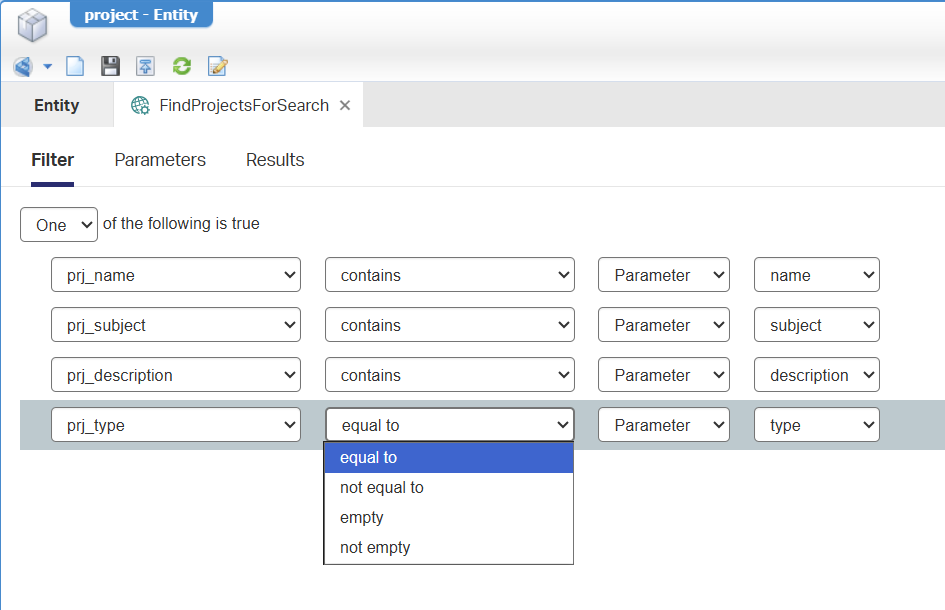
Notes:
- All those parameters are of type ‘Text’…In case you wonder.
- Why
prj_type‘equal to’? Well, “contains” isn’t an option for Enum properties…Don’t shoot the messenger; It’s what it is!? 🤨
When all ready, do a first publication, and create an instance (with name test001) in runtime.
Because of this webservice, we also need a service container of type ‘Application server connector’ from the ‘System Resource Manager’ artifact; Again, a task on your own…Or comment below!
…
Now we first assess our new service call from the ‘Web Service Interface Explorer’ artifact with input like this:
1 | <SOAP:Envelope xmlns:SOAP="http://schemas.xmlsoap.org/soap/envelope/"> |
Why the @@EMPTY@@ input? The service call required all the elements and database-wise this “smells” smarter for the below OR-statement; You want to match something that will never happen for the other values; __NONE__ is also such a value. In a later stage (our customization), we make this flexible based on input field in a custom HTML form. When empty, we put @@EMPTY@@ and otherwise the input value!
This is the query behind it at database level (for your DBA to have an opinion):
1 | SELECT gp.Id, gp.S_ITEM_STATUS, gp.S_IS_TEMPORARY_COPY, gp.prj_name, gp.prj_subject, gp.prj_description, gp.prj_start_date, gp.prj_type |
…
Ok, service is ready…now what? Well, we need something to call our service in a flexible way. For this, we first follow our own post about the HTML5SDK. It will give you a head start with an HTML, CSS, and JavaScript file to play with. This will be the end-result of that post (slightly modified for this post):
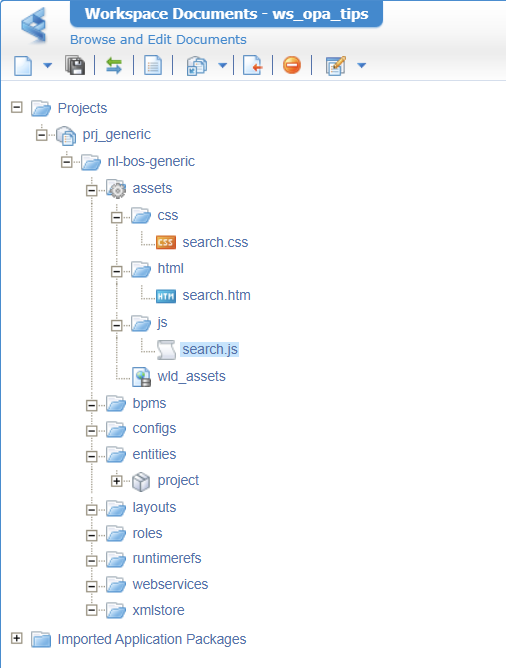
We make it a stand-alone HTML search page which we can open with a link from a homepage…All for later!
This is the HTML search.htm accessible via http://192.168.56.107:8080/home/opa_tips/html/search.htm
You already see a first implementation using GridJS (amazingly easy to implement advanced tables) and my input fields with a search button:
1 |
|
This is the MVP JavaScript search.js accessible via http://192.168.56.107:8080/home/opa_tips/js/search.js
1 | $(document).ready(function() { |
This is what it does:
- Uses jQuery to run the script, once the HTML is ready with loading.
- Has a function
renderGrid()to render a ‘dummy’ data grid.- When we hit our search button, we call the
renderGrid()with our input filters.
We leave the CSS search.css empty (for now!), but it’ll be accessible via http://192.168.56.107:8080/home/opa_tips/css/search.css
Bro-tip: use an incognito tab in a Chrome browser which is better for cashing and refreshing!
When all is published, you have a first glimpse in runtime for the search.htm URL after hitting the ‘Search’ button:
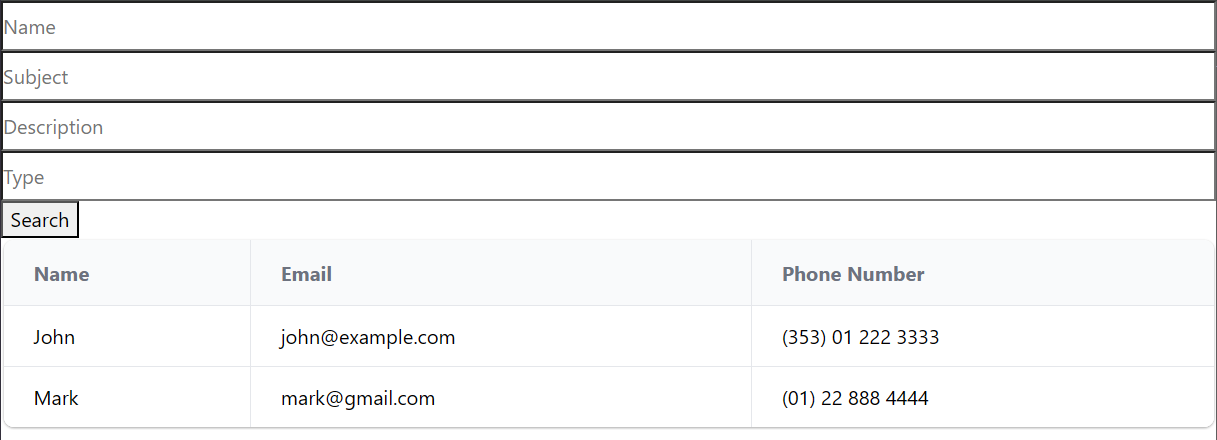
You already see some CSS styling applied…That’s because of the included platform CSS-files!
NICEEEEE…How easy can it be; right? Let’s continue for the advanced stuff…
Further implementation on the JS
This is the list of requirements we need:
- Call our webservice
FindProjectsForSearchwith the correct input (AND managing namespaces) - Fill grid with the service result
- Refresh the grid after a second search
- Make an entry clickable to open the entity instance (in a new tab)
- Hit
<Enter>to search (instead of clicking ‘Search’) - Apply some small styling tweaks (high-lighting and CSS)
- Finally, call the search from a homepage in runtime
Let’s go through them one by one…
…
1️⃣ 📢 Call our webservice FindProjectsForSearch with the correct input (AND managing namespaces)
To call a SOAP service from the HTML5SDK to the OPA platform, we need this code-part $.cordys.ajax({...});. When you look at the initial service call (from above), we can code things like this:
1 | $.cordys.ajax({ |
You will see this after a publication in runtime, a refresh of the browser, open de developer tools, AND a click on the search:

That’s the result of our console.log(JSON.stringify(data)); after a success!
This makes it a little more readable:
1 | { |
Great…But that’s with hard-coded input values! We want to use our input fields…Yes, pleazzzzzze!
It’s time to set up the filters in line const filters = {}; with something fancier (the #-fields match with the HTML field-ids):
1 | const filters = { |
The filters depend on a helper function (living within $(document).ready(function() {...});) to make sure an “empty” field will convert to @@EMPTY@@ in the eventual service call:
1 | function valueOrEmpty(val) { |
Those filters will pass into the renderGrid(...) function where we can reuse them as input for our service call:
1 | parameters: { |
After publication, a refresh, filling in the filters, you should get results once more. Also check the developer tools network tab to see if the payload of the call is correct:

2️⃣ 📢 Fill grid with the service result
Great steps so far…Next, we want to fill our grid with the response of our service call (and we are pretty close already!)
We hard-code the columns based on our response in the developer tools:columns: ['Id', 'Name', 'Subject', 'Description', 'Type', 'Start date'],
The “data” is an array with nested arrays (2-dimensional) which we define like this: data: rows. The rows will be a variable build with a helper function buildRowsFromResponse(data):
1 | function buildRowsFromResponse(data) { |
…
Now that we’re filling the grid, let’s also add some fancy features (searching, sorting, pagination) to the grid itself:
1 | gridInstance = new gridjs.Grid({ |
Time for a publication and retest (incl. more ‘Project’ instances):
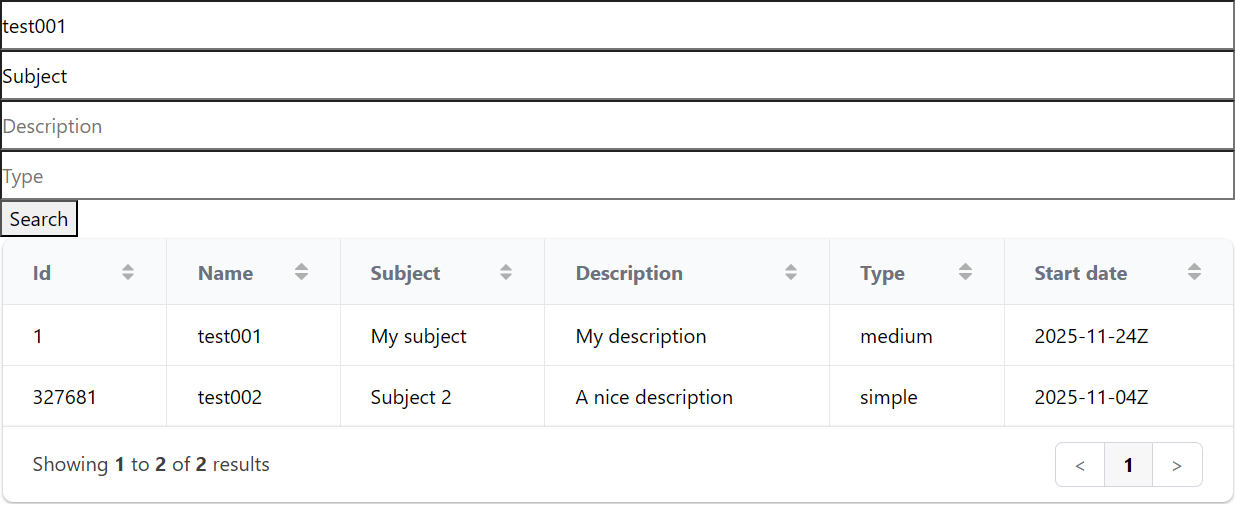
NICEEEE! We’re getting there…
Notes:
- Be aware that my Postgres DB is case-sensitive (by default)! So
Subjectis something different thensubject! You see two results because of the OR-statement in the search service.- For Oracle and SQL-Server, you can have case-insensitive (CI-collation) databases!…Is this the big disadvantage of being cheap with Postgres!? 🤔
3️⃣ 📢 Refresh the grid after a second search
Maybe you’ve notices already, but hitting the “Search” button multiple times will not change the grid data…There is no refresh taking place after a new search. Let’s fix this in 2 small steps in the renderGrid({...}) function. We first extract a variable const gridElement = document.getElementById(targetElementId); and do some 3-step magic after it:
1 | const gridElement = document.getElementById(targetElementId); |
Works great…Let’s continue!
4️⃣ 📢 Make an entry clickable to open the entity instance (in a new tab)
For this, we first need to get the value of the ‘ItemId’ from the instance in the buildRowsFromResponse() function with an extra line: const rawItemId = project['project-id'].ItemId || "";
We also want the GridJS grid to manage HTML tags…That’s a simple formatter change like this:
1 | columns: [ |
Eventually, we can make the ‘Id’ clickable with some HTML parts:
1 | let clickableId = rawId; |
Finally, we miss the baseUrl as constant which we can calculate from the current browser window URL as global variable in the top of the $(document).ready(function () {...}) function:
1 | let gridInstance = null; |
Again, victory in runtime with clickable links to this sample URL: http://192.168.56.107:8080/home/opa_tips/app/start/web/item/080027866f6aa1f0b25e2634b1a0310f.327681
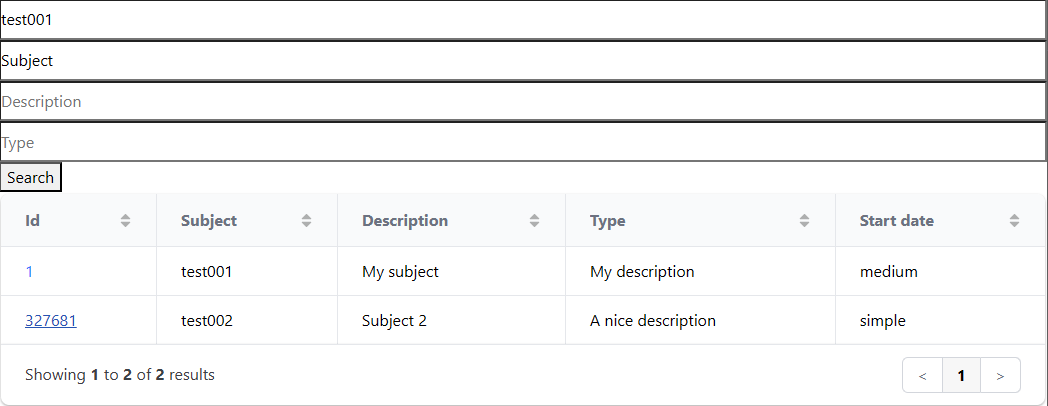
The screenshot has a glitch…The “Name” column is missing which is fixed in the final JS code below!
5️⃣ 📢 Hit <Enter> to search (instead of clicking ‘Search’)
That’s a quick easy hack with this piece of code:
1 | // Hit <Enter> to start search |
Well, that’s also the final part…Next is making it all nicer! 😎
6️⃣ 📢 Apply some small styling tweaks (high-lighting and CSS)
First the CSS parts with some small tweaks:
1 | body { |
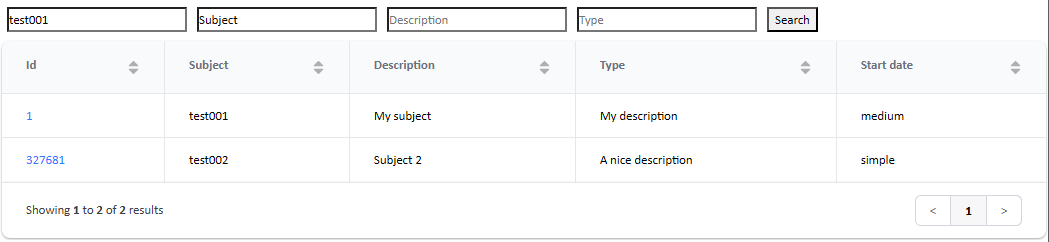
That’s much better! Next is some highlighting…
You see in the CSS already the class hl-search passing by; we’ll use it below!
…
Highlighting is part of the buildRowsFromResponse() function (like the HTML tags for the item clickability!). We want to highlight based on the text you search for, so we first need to pass in the filters with a parameter: function buildRowsFromResponse(data, filters) {...}. From the function call itself, we pass it in: let rows = buildRowsFromResponse(data, filters);
Next, we need to do something with those filters:
1 | const name = highlightText(rawName, filters.name); |
You see new helper function calls which looks like this (placing an extra highlight HTML tag around the values matching the filter text):
1 | function highlightText(text, term) { |
The outcome? Watch this:
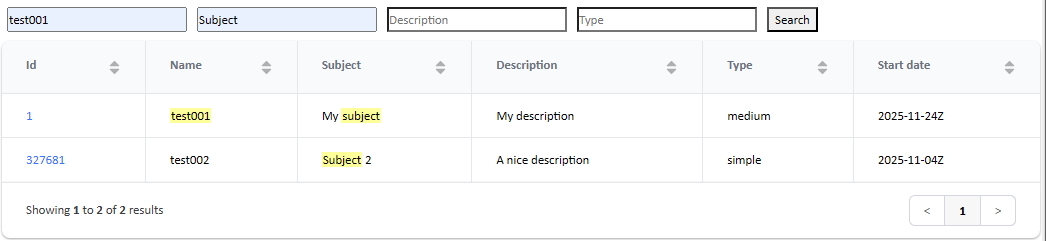
It’s a party! 🥳
7️⃣ 📢 Finally, call the search from a homepage in runtime
We can implement this in 2 ways…Just a link in the header of a new homepage type of document:
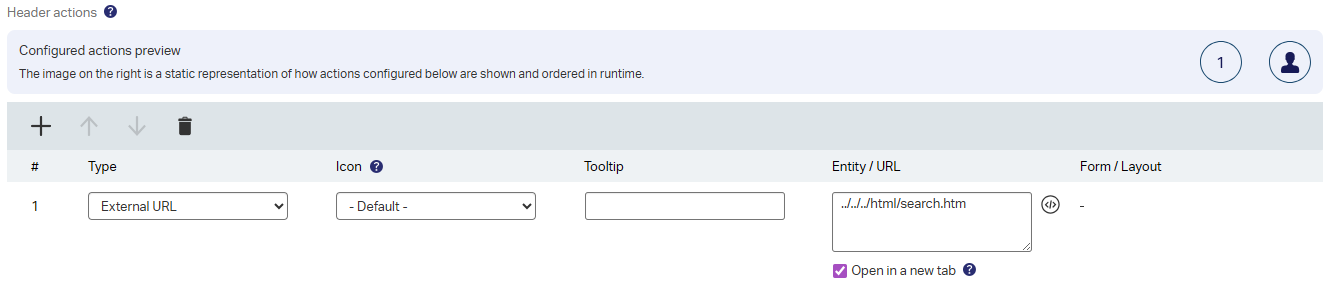
…or embedded as web content panel:
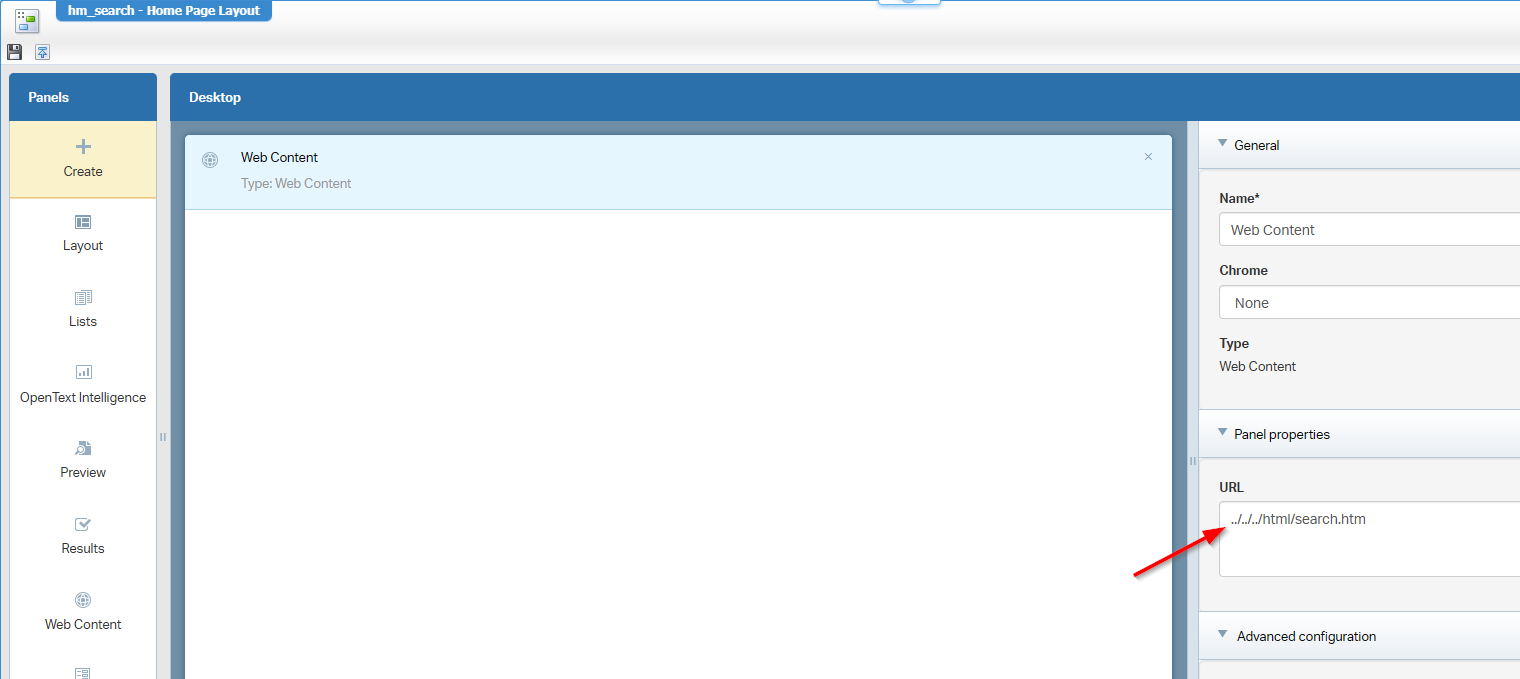
This is the end-result for a new homepage hp_search in runtime (I leave the manipulation of the link-icon with you!):
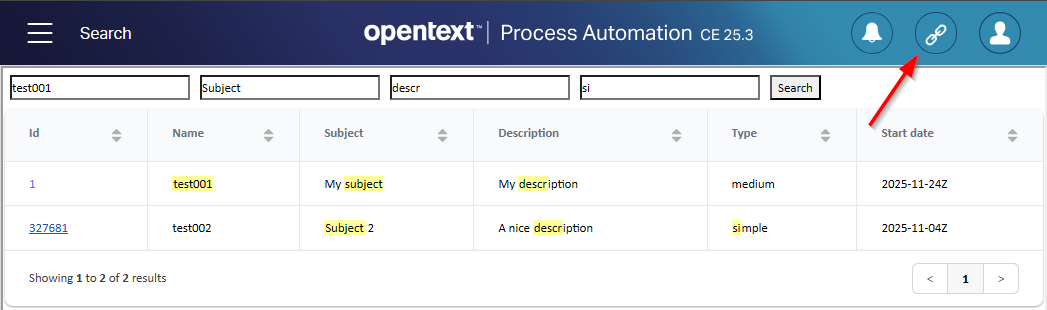
…
You can find the latest JavaScript file (130 code-lines!) here; Nice beautified at beautifier.io
That’s it for an elegant “DONE”. With a little AI vibe-coding, it’s crafted within a day (if you know what you’re doing!). It’s even beyond expectation with all the highlighting of the search results. I give the head start away for free, it’s now your turn to manipulate it to your own requirements. Have a great weekend; Till next time in a new topic at “Process Automation Tips”!
Don’t forget to subscribe to get updates on the activities happening on this site. Have you noticed the quiz where you find out if you are also “The Process Automation guy”?
